Contents
Getting started
First steps
ES Schémas draws the electrical installation of a building and produces its dossier from it: layout plans, single-line diagrams, RGIE checks and PDF.
A complete installation is built in four steps, in the order of the “STEPS” bar: you draw the building, place the components in it, set up the boards, then link each component to its circuit. A tertiary project adds “Tertiary documents” to them; an EV charger or a photovoltaic installation starts with its own page (see “EV charger and photovoltaics”). The documents (“Checks”, “Dossier”, and “Calculations” for a tertiary project) and the PDF, single-line diagrams included, are derived from this model: there is nothing to redraw.
The path of a project:
- On the home screen, tap “New project”. The first time, sign in with Google, Microsoft, Apple or your email address: every project belongs to your account. Then register your company (“Account”): its free trial starts once we have validated it; learners and teachers of an electrician course ask for the Education licence instead (see “Licence”). Only the name is required; the client, the site and the EAN can be filled in later.
- “1 Building”: draw the walls, place doors and windows, add the floors. Rooms are detected automatically.
- “2 Components”: place sockets, light points and switches from the palette, then link the switches to what they control, and appliances to their socket, with the “Assign” tool.
- “3 Boards”: fill in the distribution network, then add a board: it opens, ready to receive its protective devices (RCDs, circuit breakers).
- “4 Assignment”: choose a circuit in the palette, then tap everything on the plan that works with it.
- Look at “Checks”, then generate the dossier with “PDF”.
Everything is saved automatically on the device with each change: there is no “Save” button. The status bar, at the bottom of the studio, shows “Saved · rev. N”.
On iPad and Android tablets, at first launch, the app asks whether it may send usage information so that it can improve (“I agree” or “No thanks”): no text, image or client data is sent. “Improvement”, at the top of Help, changes this choice.
In this guide, “tap” also means clicking with the mouse or the trackpad on Mac and Windows.
Projects, archives and trash
The home screen lists the projects on this device. Each card has a “…” menu to manage them.
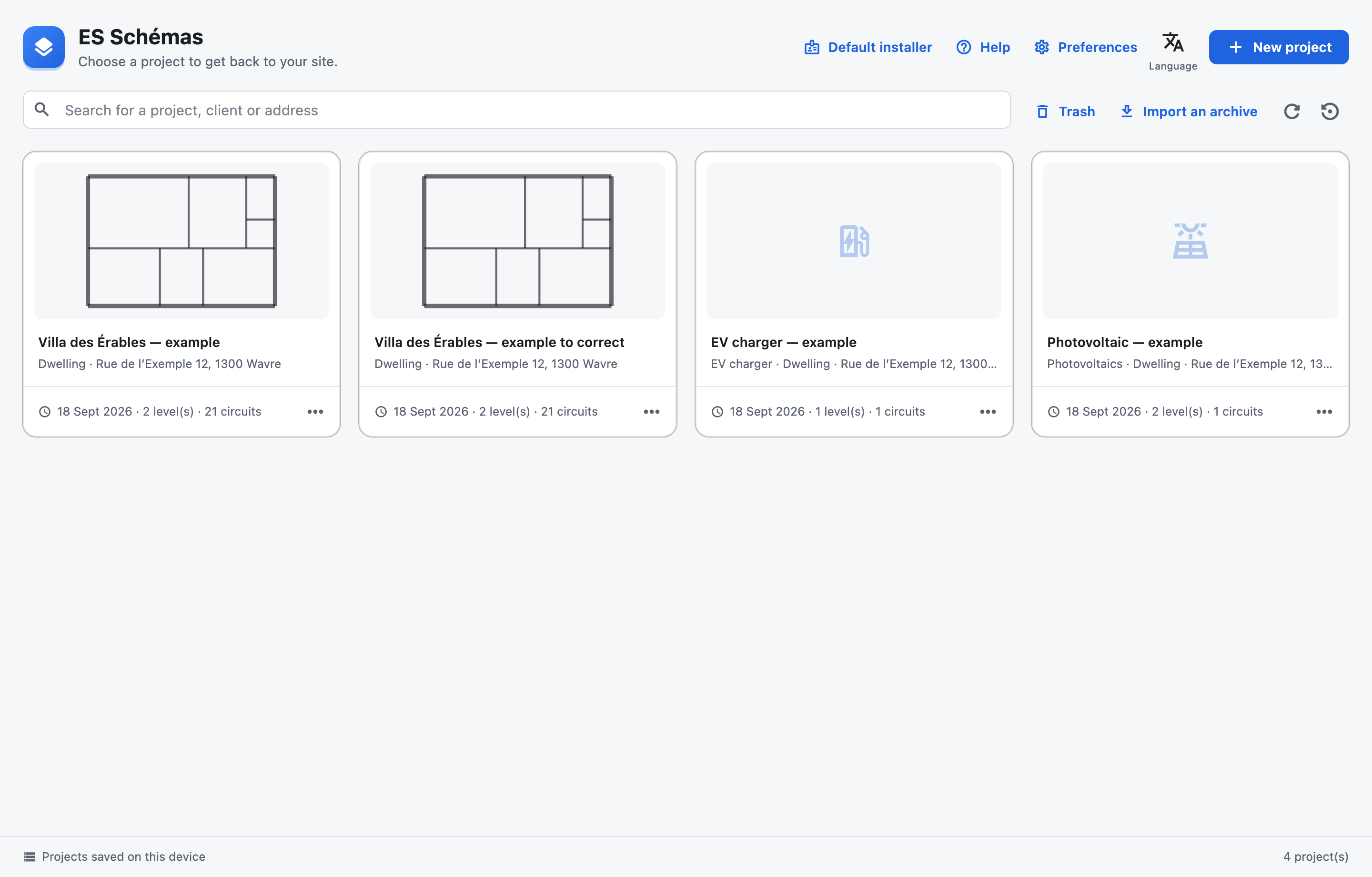
- “New project”: project type (complete installation, EV charger or photovoltaics, see “EV charger and photovoltaics”), name (required), installation type (dwelling, tertiary, common areas), client, site and meter EAN. A complete installation starts with an empty ground floor. The installation type can then be changed in “Dossier” › “Title block information…”, in the “Site” section, or on the page of an EV charger or a photovoltaic installation; ES Schémas Mobile changes it with “Edit details”.
- “Search for a project, client or address” keeps the projects that contain each of the words typed in their name, their client, the site or client address, or the meter EAN, ignoring capitals and accents. ES Schémas Mobile searches the same way.
- A card’s “…” menu: “Rename”, “Duplicate” (creates “… — copy”), “Export the archive”, “Move to Trash”.
- “Trash” shows the projects you removed; “Restore” puts them back in the list. “Delete permanently” (the “…” menu of a card in the trash) erases a project and all its versions, once DELETE is typed to confirm.
- “Import an archive” opens an .esschema file. Importing always creates a copy named “… — imported”: it never overwrites an existing project.
- “Restore a local backup” (icon next to “Import an archive”): every day, when it opens, the app copies all the projects on this device and keeps the last five copies. “Restore” brings all the device’s projects back to the chosen copy; the current state is first kept in the same list, and synced projects are then reconciled with your other devices.
- “Default installer”: your signature, used in the title block of every new project. The printed name, enterprise number and contact details are those of your licence (“Account”).
- “Language”: the language of the app, French, Dutch or English. The PDF dossier has its own (see “Dossier and PDF”).
An .esschema archive contains the whole project. It serves as a backup, or to pass a project to another device without going through sync. On iPad and Android, exporting opens the share sheet; on Mac and Windows, a save window.
Finding your way around the studio
Once a project is open: the header, the steps and documents bar, the page, then the status bar.
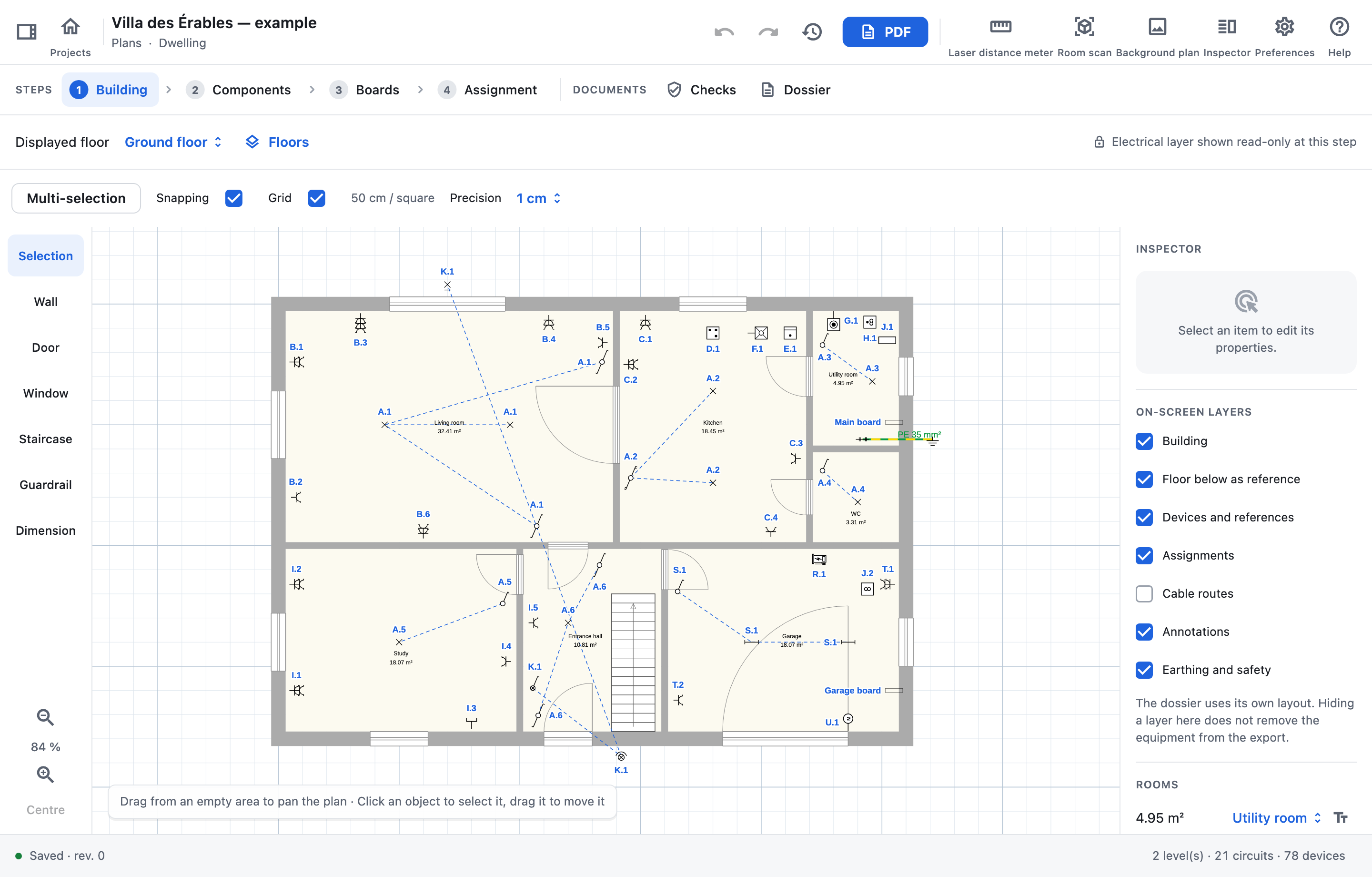
- Header: “Projects” closes the project; “Undo” and “Redo”; “Version history” goes back to an earlier version; “PDF” generates the dossier; “Laser distance meter”, “Room scan”, “Background plan”, “Orientation” (tablets), “Inspector”, “Preferences” and “Help”. The icon to the left of “Projects” shows the sidebar: sync status, “Documents and checks” and “Close the project”.
- “STEPS” bar: “1 Building › 2 Components › 3 Boards › 4 Assignment”, then “5 Tertiary documents” for a tertiary project. An EV charger project starts with “1 Charger”, a photovoltaic installation with “1 Photovoltaics › 2 Roof”, and the following steps are numbered after them; their “Assignment” step only appears when a placed component is waiting for its circuit. Changing step puts the tool back on “Selection”.
- “DOCUMENTS” bar: “Checks” and “Dossier”, preceded by “Calculations” for a tertiary project.
- Tool rail to the left of the plan, with the zoom and “Centre” at the bottom.
- Inspector on the right: properties of the selection, displayed layers and list of rooms.
- Box at the bottom left of the plan: what the active tool expects (for example “Choose the second point · Esc to cancel”).
- Status bar: saving, number of levels, circuits and devices, and the app version.
Each step edits a single layer of the project. At the Building step, the electrical layer is shown read-only; at steps 2 to 4, it is the building. A padlock above the plan reminds you of this: you won’t move a wall by mistake while placing a socket.
The steps
1 · Building
Walls, doors and windows, staircases, guardrails, dimensions, rooms and floors.
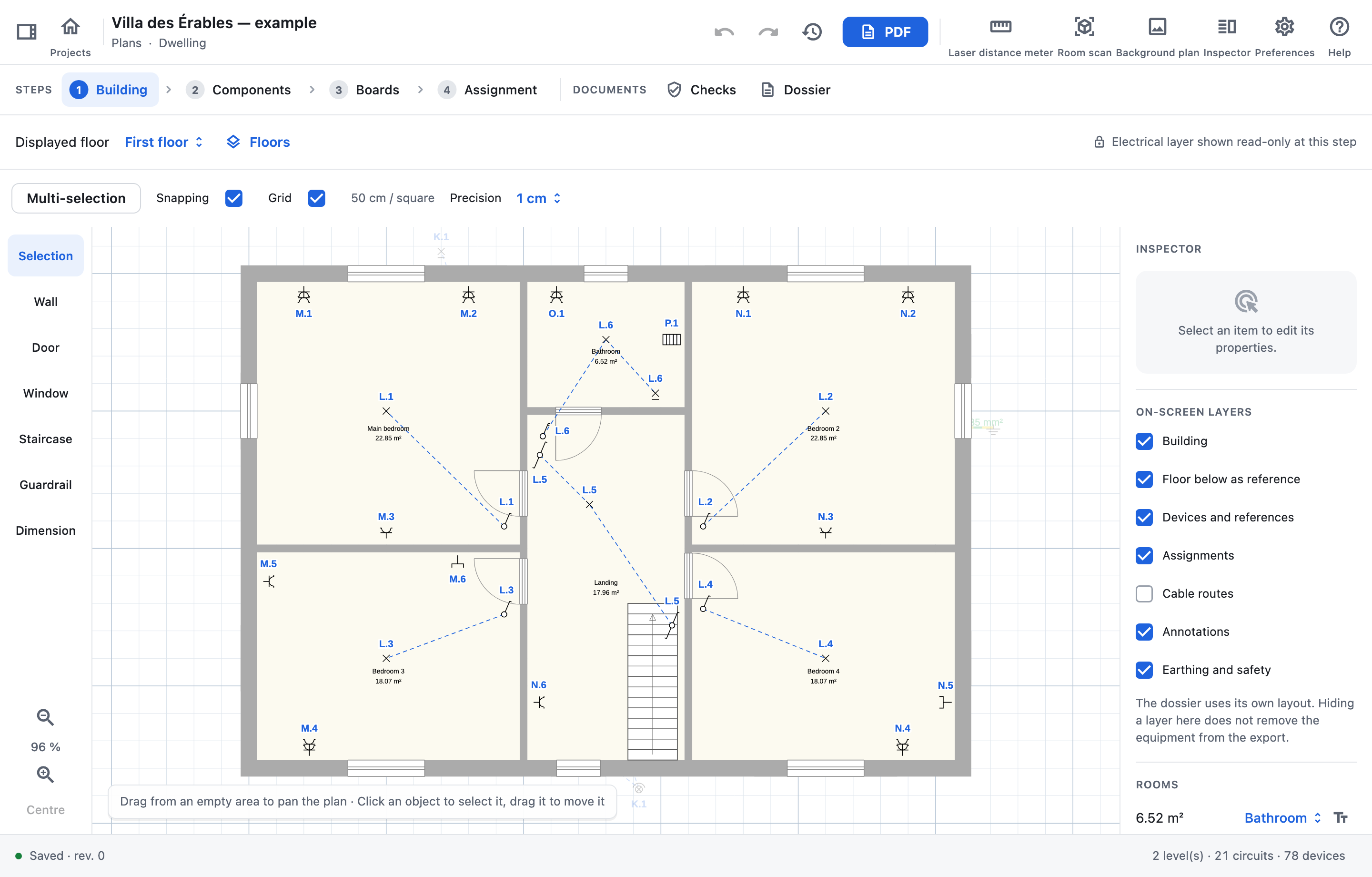
Drawing the walls:
- Choose the “Wall” tool and, above the plan, the “Wall thickness” (7 to 30 cm).
- Drag from one point to the next: the walls follow on from each other. “Snapping” attaches to ends, to walls and to alignments, and brings a nearly diagonal wall back to 45°. Tap a wall without dragging to select it.
- After each wall, the “Last wall” box shows its length on the left and right faces: pick the face you measure, then measure with the laser distance meter to correct the wall. No keyboard opens while drawing; to type a length, select the wall and use “Wall dimension” in the inspector. The starting point stays fixed: the next wall starts again from the new end.
- Once the rooms are closed, “Auto resize walls…”, next to the “Wall thickness”, asks for the thickness of the outer walls (30 cm proposed) and of the indoor walls (10 cm) and applies it to the floor: an outer wall thickens outward, its inside face stays in place. A room named courtyard, garden or terrace counts as the outside. Walls drawn afterwards keep the “Wall thickness” chosen.
- “Selection” or Esc ends the drawing.
Editing a wall:
- Dragging an end handle moves that end; dragging the body of the wall moves it with the walls connected to it.
- Tap the green dimension of a selected wall to enter its length.
- The inspector offers: “Parallel wall…”, “Thickness (m)”, “Axis offset (m)”, “Split the wall in two”, “Detach wall”, “Merge walls”, “Lock movement” and “Delete the wall”.
“Door” and “Window”: tap a wall to place the opening; it is selected straight away, with the inspector open. Width, height, sill height, opening direction and roller shutter are set in the inspector; the ring of actions around a selected opening lets you resize it, flip it, centre it or place an identical one. Drag it along the wall to move it.
To place it from a measurement, then tap the wall you measure to: the possible walls light up, including beyond the corners of the opening’s wall. Rest the laser against the side of the opening and aim at that wall, or type the value in “Distance to the chosen wall” in the inspector. “Measure to a wall…” picks another wall later.
“Staircase” and “Guardrail”: drag a model from the catalogue onto the plan, or tap the model then the plan. The catalogue shows in the inspector (“Inspector” button if it is hidden). A placed staircase is turned with its handle: with “Snapping”, it stops on the nearest right angle (within 6°); without it, it turns degree by degree. Its dimensions, its shape, its “Rotation (°)” and “Lock movement” are set in the inspector. A guardrail is extended by pulling an end; pulling a segment adds a vertex. “Dimension” adds a measurement between two points.
“Multi-selection” (above the plan): draw around an area or tap the elements, then drag the group, rotate it, flip it, duplicate it in columns and rows, lock it or delete it.
Rooms: they are recalculated with each change to the walls. Tap inside a room to give it a type and a name, set its height and whether its area is shown. “Detect rooms”, in the “Floors” menu, runs the detection again.
Floors: “Displayed floor” chooses the level. The “Floors” menu lets you rename, move, delete or add a floor; “Rename and edit the floor…” also sets its height and the thickness of its slab. “Add a floor…” can copy the displayed floor: walls (or outer walls only), openings, staircases, dimensions, texts and even electrical components (they arrive without a circuit), and create the stairwells. “Align with “…”” lays the displayed floor on the floor below (above for the lowest one): it moves it and, if needed, turns it so that its walls stack, with everything placed on it; “Undo” puts it back where it was.
“3D view”, next to the “Floors” menu, opens a preview of the level with its walls, openings, staircases, guardrails and electrical devices at their mounting heights. Drag to rotate, scroll or pinch to zoom; two fingers or a right-button drag pan the view. “Cutaway walls” lowers the walls to reveal the interior. Tap a device to read its name, circuit reference and height. The preview’s floor selection and camera do not change the plan; close it to resume drawing.
Fixed appliances in the catalogue have recognisable volumes: ovens, hobs, refrigerators, freezers, washing machines, dryers, dishwashers, heaters and water heaters. These volumes use illustrative standard dimensions; they do not replace manufacturer measurements. Their orientation follows the placement, and the details retain the entered mounting height.
2 · Components and controls
Place sockets, light points, switches and appliances, then link the controls.
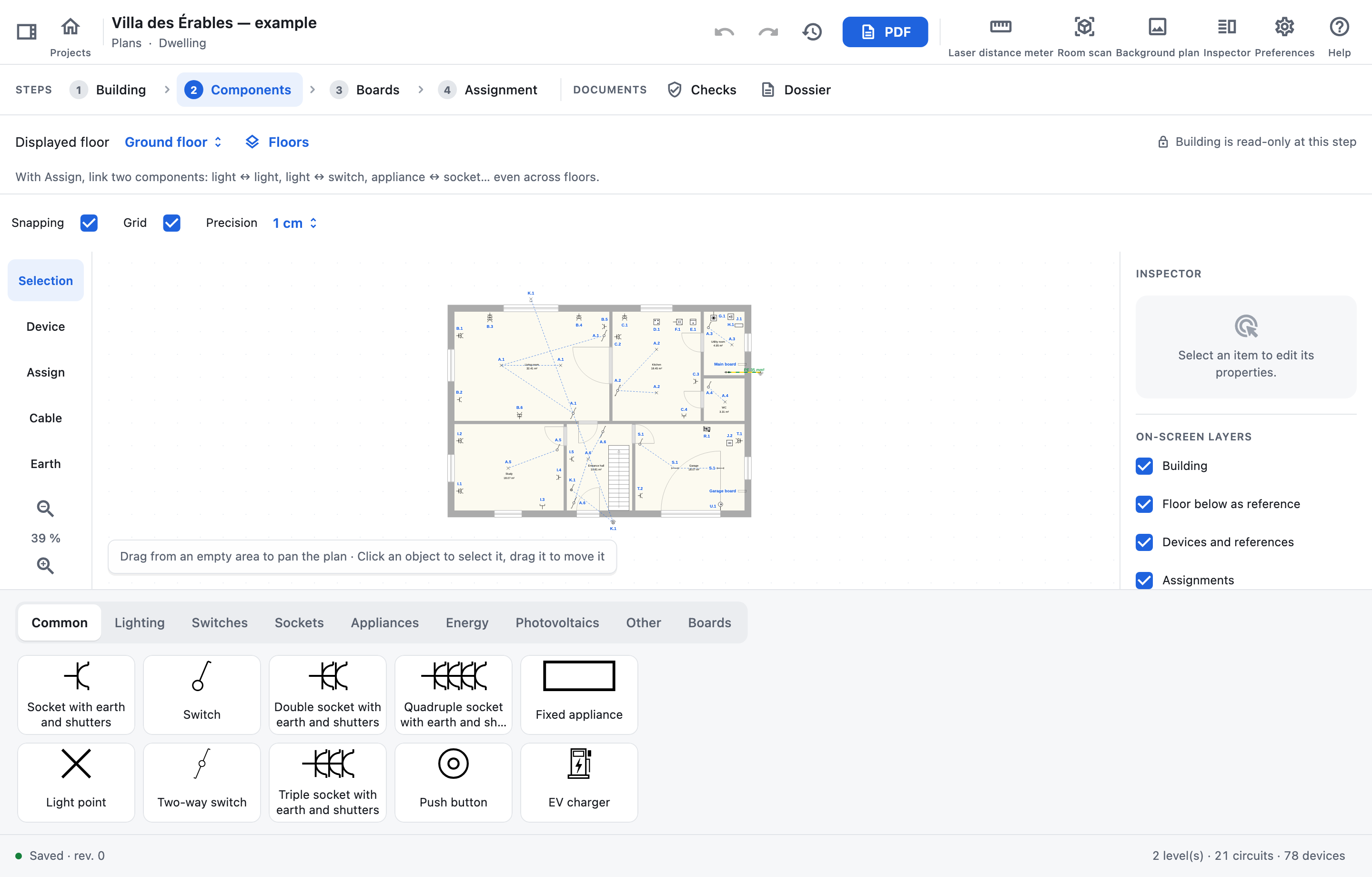
Placing a component:
- In the palette at the bottom of the plan, choose a family (“Common”, “Lighting”, “Switches”, “Home automation”, “Sockets”, “Appliances”, “Energy”, “Photovoltaics”, “Other”) then a symbol.
- Tap the plan: the component is placed, attached to the nearest wall if snapping is on. With snapping on, a light point placed near the centre of the room snaps onto it, unless another light is already there. The tool goes back to “Selection” and the component stays selected.
- Set its properties in the inspector: “Quantity” (lamps, number of sockets), “Earth pin”, “Switch type” (“Single-pole switch”, “Double-pole switch”, “Two-way switch”, “Intermediate switch”), “Designation”, power, manufacturer, model, “Splash-proof”…
An EV charger, an inverter (or a battery’s converter) or a battery also has the “Product” group: “Make and model” and “Serial number”, one per device, separated by commas when the point has several; photovoltaic modules have “Make and model” without a serial number. A battery’s modules and usable capacity are set there. The “Power (W)” of a charger or an inverter sizes its circuit, as on its page.
“Home automation”, on the action ring or in the inspector, opens the component’s controls. On a control (switch, push-button, socket with switch), tap the RGIE’s markers (“Local push-button control”, “Detection control”, “Programmed control”, “Wireless control”): they go into the header of the control unit’s frame, and the frame goes with the last one. The “Push-button control extension” appears by itself when a push-button is assigned to the unit. On a light, a socket or an appliance, choose “Motion detector”, “Staircase timer”, “Time switch”, “Home automation push button” or “Wireless push button”: the control is placed next to the component and assigned to it, and the component keeps its symbol; deselecting it takes it away, and deletes it when it controls nothing else. The palette’s “Home automation” family places ready-made control units.
Around a selected component, a ring of actions lets you rotate it by 45°, edit its text, open its properties, duplicate it or delete it. Drag the symbol to move it.
With snapping on, a switch dropped on another one, or snapped beside it on the same wall face, joins its box: the controls are packed side by side, like a hand-drawn multi-gang symbol. Dragging one control moves the whole box; “Take the controls out of their box”, on the ring, separates them.
A control only takes up 6 cm of wall, as on site: a box of three fits in 20 cm, between a corner and a door. Doors and windows split the wall face: a switch or a board goes on the nearest free stretch, not in front of an opening if it fits elsewhere. The box is still drawn with normal-size symbols, in a row, or in a column towards the room when the face is too short.
Linking a switch to what it controls:
- Choose the “Assign” tool.
- Tap the switch, then the lamp it controls (or drag from one to the other). Two linked lamps form a group that lights up together.
- You can change floor in between: an assignment can link two levels.
An appliance plugged into a socket (oven, fridge, washing machine…) is assigned the same way: tap the appliance, then its socket. Its connection line then leaves towards that socket, and follows it when the socket is dragged. An appliance has only one plug: already assigned to a socket outlet, it refuses another one (“This appliance is already assigned to another socket.”); a data outlet does not count.
A link is removed by double-clicking it with the “Assign” tool, or with “Unlink” in the inspector. A link to another floor is not drawn on the plan: with “Assign”, a circle rings the component, with an arrow up or down per floor between them. Tap it, then “Unlink” next to the link listed above the plan. If the two components are on different circuits, the app asks you to choose a single circuit for the group.
“Cable” draws the route of a cable: first choose the “Cable circuit” in the inspector, then tap two points per section.
The palette’s “Boards” family places the project’s boards on the plan: choose one, then tap its location. Near a wall, the board snaps to its face, lying along the wall, clear of doors and windows, and follows the wall when it moves. Its symbol can then be dragged like a component; the ring around the selected board rotates it by 45°; “Detach from the wall” and “Remove from the plan” in the inspector free it from the wall or take it off the plan without deleting the board. Automatic cable lengths start from this point.
Earthing plan: place the earth electrode and the earth disconnector (“Device” tool, “Other” family: Earthing, Earth disconnector; only one disconnector per installation, it is not copied with a floor), then choose the “Earth” tool. Tap the earth electrode to start, then the route point by point: tapping the earth disconnector ends the conductor there. Both symbols attract the tap and are circled as long as they can be tapped. Esc or “Finish conductor” ends it at the last point. The conductor appears in green/yellow, with its cross-section, on the layout plan and in the PDF (“Earthing and safety” layer); select it to change its cross-section or delete it.
3 · Boards and circuits
The distribution network, the boards, their protective devices and their circuits.
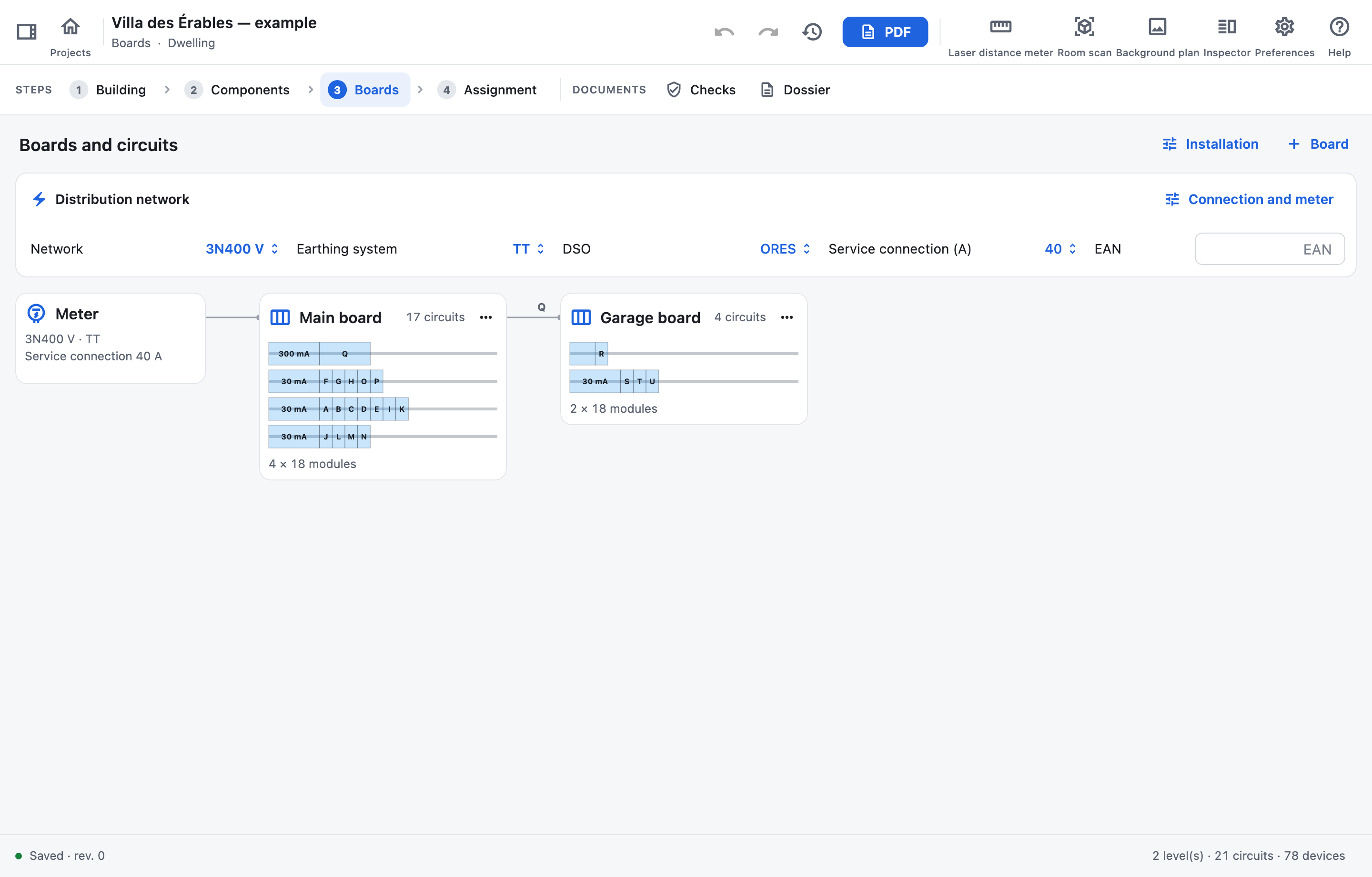
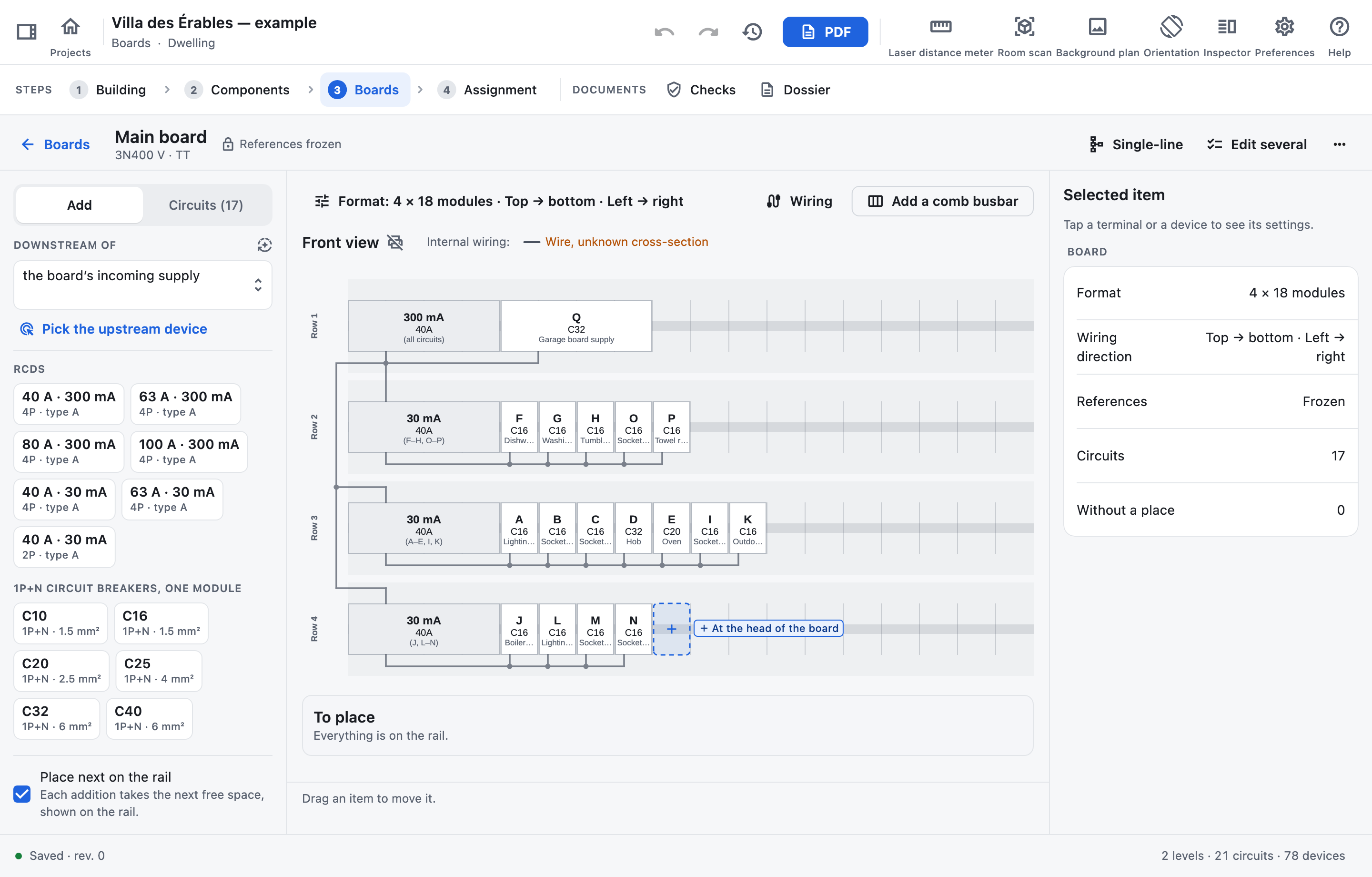
Setting up an installation:
- In the “Distribution network” banner, choose the “Network” (230 V L–N, 3N400 V…) and the “Earthing system”, which show “To be chosen” as long as nothing is chosen, then the “DSO”, the “Service connection (A)” and the “EAN”. These values feed the main board and the title block. “Connection and meter” (or the “Meter” card) completes the supply: “Earth resistance (Ω)”, main circuit breaker, service cable, “Show the incoming supply” in the dossier and, for a tertiary project or common areas, the “Prospective Isc at the origin (kA)”.
- Boards are shown as a miniature of their layout, linked to what feeds them: the “Meter” card at the top left, then the main board, then its sub-boards, each link carrying the reference of the outgoing circuit feeding the board; a board fed by several outgoing circuits gets one link per outgoing circuit, the others dotted. Each card shows the board’s format (“4 × 18 modules”) and, in orange, the items waiting for a space on the rail; its “…” menu opens its properties or deletes it. “Board” (or “Add a board” when there is none) adds a board, by “Manual composition” or “From photos…”, and opens it. When other boards exist, “Supply of …” first asks what feeds it, the network incomer or an outgoing circuit of another board (for a sub-board), and its format: “Rows” and “Modules per row”.
- Tap a board to open it on its layout, its only editor, in three columns: “Add” or “Circuits” on the left, the rail in the middle, “Selected item” on the right (both columns below the rail on an upright iPad, above it on a narrow screen). At the top, the board’s name, with its supply under it, opens its properties: name, order, references, supply and place on the plan; “Single-line” shows its single-line diagram; its “…” menu freezes the references or deletes the board. “Boards” goes back to the overview. With nothing selected, “Selected item” sums up the board: format, wiring direction, references, circuits and devices without a place. Above the rail, “Mounting” places, moves and sets up the devices; “Wiring” links them, “Add” and “Circuits” stepping aside to leave room for the inspector.
- “Add” starts with one button per device: “RCD”, “Circuit breaker”, “RCBO”, “Impulse relay” and “Surge protective device (SPD)”, each added with the ratings it most often has on the board’s network, then selected: the inspector shows its settings to change; “Other…” opens every module. Below, “Most common” adds in one tap only the few RCDs and circuit breakers most used on that network (type A, curve C, 2P circuit breakers over two modules). With “Place next on the rail”, at the foot of the column and ticked by default, each addition takes its place on the rail, after its group or in the next free space: a dashed space shows it on the rail before the tap, with what it will go below (“Below 30 mA”, “At the head of the board”). Tap a free space to start the additions there; the dashed space’s cross puts them next again. Unticked, additions wait in “To place”, below the rail. The last addition is shown with “Cancel”.
- “Other…” opens the full sheet of a circuit breaker, an RCD, a surge protective device, a kWh meter, a powerline filter, a phase coupler, a control supply, a transformer, an impulse relay, a dimmer or a home automation module (motor, switching, dimming). For an outgoing circuit, “Device type” also makes it an RCBO, a fuse, an isolator, a fuse isolator, a contact (contactor), a twilight switch or a rotary switch. Rating, poles, curve, sensitivity and outgoing cable are set in its sheet.
- The powerline filter goes in series at the head of the board and feeds the devices downstream; the phase coupler is connected in parallel, like a surge protective device. The RGIE has no symbols for them: the dossier then includes the legend that defines them.
- “Downstream of”, at the top of “Add”, says which device the additions go below: the board’s incoming supply, or a device of the board chosen in the list. Below it, “One level up” moves to the one feeding it; the selected device is offered there (“Below F”), to choose in one tap; “Pick the upstream device” has you tap it on the rail or in “Circuits”. “Add downstream”, next to the selected device’s reference, does the same. Selecting a device does not by itself change where additions go; while “Supply automation” is on, they go below the RCD or isolator just added, and an RCD added below an RCD as sensitive or less goes beside it, under the same supply: a second 30 mA joins the first under the 300 mA. An impulse relay goes below the circuit breaker chosen, else below the one before it on the row.
- “Circuits” shows what feeds the board, then its devices as they feed each other, in the rail’s order, each with its reference, its ratings and the boards it feeds (“→ TD 2”); a red circle marks one waiting for its place. Under each outgoing circuit, its “Designation” is typed in place, or stays Auto (from the plan), or is chosen among the usual ones; Tab moves to the next. Tap a row to select the device on the rail; drag it onto another device (long press first on a tablet) to have that one feed it. “Board’s incoming supply”, at the top, chooses what feeds the board, the network incomer or an outgoing circuit of another board, for all its head devices at once; “Supplied from”, in its properties, does the same. The circuits without protection come last.
- A device tapped on the rail or in “Circuits” shows in “Selected item”: its reference and “Add downstream”, its “Designation”, then its settings in groups, to change in place: its type and ratings (rating, curve, sensitivity…); the “Cable” leaving it to its circuit (type, fire class, section, conductors; “All circuit settings” for its laying and length); its output link when it feeds other devices of the board; “Position in the board”, with “Fed by” (the board’s incoming supply or a device of the board) and its “Width” in modules. Below, “Duplicate” (the copy goes on the rail after it), “Take off the rail”, “All settings” for its full sheet and “Delete”. A selected RCD lists the circuits it protects (“Protects A–G”).
- A contact (contactor) whose coil is driven by an impulse relay, a dimmer or a home automation module, from any board, names it in “Controlled by”: the single-line diagram writes “Control: T8” under the contact and “Coil: K8” near the impulse relay.
References (A, B, C… or A1, A2…) are assigned automatically and follow the rail: row by row, in the board’s wiring direction, the devices in “To place” last. A move that changes some says so in the status line (“Auto references following the rail: K → L”); an addition that would shift those of another board asks first (“Shift the references” or “Keep their references”). A “Forced reference” is kept. The format is chosen in “Installation”. A circuit’s description can stay automatic: it is derived from the assigned components and the rooms served.
“Freeze references”, in the board’s “…” menu or in its properties, keeps every reference as it is: adding, moving or deleting an outgoing circuit no longer renumbers it, and an outgoing circuit added takes the next reference, frozen too; “References frozen” at the top says so. Printing a row’s label while they follow the rail first offers to freeze them. “Set references back to Auto” makes them follow the rail again. By default, an RCD takes no reference: the single-line diagram shows its sensitivity followed by the circuits it protects (“30 mA (A–G)”); nor does an isolator. To give them a reference like a circuit, turn on “Give RCDs a circuit reference” in “Preferences”, for this project or for new projects. An RCD’s cable to another board takes no reference: it carries the RCD’s sensitivity, and “Selected item” names it “Wiring system to …”. An impulse relay added below its circuit breaker carries on that circuit breaker’s circuit: same reference, same designation, same cable. A surge protective device, a phase coupler, a kWh meter, a powerline filter or a control supply never takes an automatic reference: the letters go to the outgoing circuits.
Organising:
- “Edit several”, in the rail toolbar beside “Mounting” and “Wiring”: tick outgoing circuits on the rail, in “To place” or in “Circuits” (an RCD ticked ticks its outgoing circuits; “Select all” takes them all), then “Edit the selection…” to change the cable or the protection in one go; each field gives its current value (“Unchanged: XVB”). On the rail, in “To place” or in “Circuits”, Shift + click selects the whole range from the last device chosen; Ctrl + click (Cmd on Mac) adds or removes only the clicked device. Ctrl + Shift + click adds a range to the selection. “Finish selection” is in the same rail toolbar. In “Mounting”, dragging one of the chosen devices moves them all, or “Take off the rail” takes them off; in “Wiring”, “Lay a comb busbar over the selection” and “Feed from…” wire them in one go.
- The layout: the arrangement of the modules on the DIN rail, which the PDF dossier shows as it is drawn, internal wiring and legend included. At the top, “Format: …” opens “Rows” and “Row width” (12, 18, 24 or 36 modules, or “Custom…”, up to 20 rows of 72 modules), which set the board’s format, and “Wiring direction”: “Top → bottom” or “Bottom → top”, “Left → right” or “Right → left”; changing direction offers to “Mirror the rows”. Each device shows its ratings as its front panel reads them (“C20”, “40A 300mA”, “C16 30mA”) and its designation, in full under the pointer. Drag an item to move it. An outgoing circuit dropped in the group of another RCD stays fed by its upstream device: “Feed from …” moves it under that RCD. “To place”, below the rail, holds what waits for a place: added without a place, taken off the rail (“Take off the rail”, in “Selected item”), come from another board, or terminals. Drag it onto the rail, tap it then a free space, or tap “Place”; “Place all next” places them all. Circuits without protection wait there too: tapped, one of them offers the usual circuit breakers to give it one. “Terminals”, in “Add”, places them side by side after the last item; for a selected terminal, set its “Terminal reference”, its “Printed text”, its “Width” and its “Connected circuit”.
- In “Wiring”, each device of the layout has a handle at its top and at its bottom; the layout draws in straight runs the internal wiring linking it to its upstream protection, always in step with “Circuits” and the sheets. Wires and comb busbars take the colour of their cross-section, explained by the legend next to “Front view” (“Comb 10 mm²”, “Wire 1.5 mm²”). Below the rail, always in view, the status line says what was just done and, with “Wiring” or during a link, guides each link step by step: drag a free handle (○) to the device at the other end, or tap it then that device or one of its green-ringed handles. During the drag, and on hover, the frame says what the link will do; refused, it says why and stays started; “Cancel” or Escape drops it, and a link made is undone in one tap. Each wire adds a free handle on that side; the wires of one node, of the same kind and cross-section, leave one handle and follow one route with a branch to each device. A filled handle (●), or the wire itself, selects its link, to “Remove the link” (the device’s upstream protection; on a bridge, the bridge only). The top or the bottom can be a device’s input: the one already upstream of the other feeds it, otherwise the one tapped on its output side, and “Fed by” follows. A link that turns a side (an input made an output, an output made an input) is drawn all the same and says so in orange; a wire from the input of a device on a comb busbar bridges onto it. Two inputs linked are bridged, dashed: bridged devices keep one upstream protection and change it together. A comb busbar is laid by dragging along a row from the first to the last device, by their upper or lower half depending on the side; “Add a comb busbar” also lets you tap them one after the other; it goes over every device between the two: the upstream device carries it, its “Link leaving the device” becomes a comb, and the others go below it. Each comb busbar has a handle of its own, ringed in copper, beyond its bar: the device feeding it is linked to it, by its tooth when it stands on the comb. Selected through it, “Extend the comb busbar” extends it and “Remove the comb busbar” replaces it with internal wiring. A wire from a device’s output to it makes that device feed the whole comb, like the wires screwed under one of its devices, and a wire from it to another device feeds that device from the comb. A selected link shows its specs in “Selected link”: those of the “Link leaving the device” feeding it, shared by every link leaving it (a comb busbar’s cross-section, for instance). A wire drawn from a comb busbar has the comb busbar’s cross-section, or its own with “Wire’s own cross-section”; a bridge between two inputs takes its “Cross-section”. The “Wiring” of a selected device says what feeds it and how; in one tap, “Put on comb busbar …” adds it to the comb busbar of its row, “Take off the comb busbar” takes it off, and “Lay a comb busbar from …” starts a comb busbar under an RCD. On an iPad, the device’s panel folds away while wiring, takes one line when nothing is selected, and its handle sets its height. The green bar on a device’s edge shows where the board’s incoming supply comes in; “Incoming supply”, dragged onto the upper or lower half of a device, feeds it from that side, and “Supply at” changes it in its “Wiring”. An RCD on a comb busbar’s row feeds it from its output side, at the top or the bottom.
- “Supply automation”, in “Preferences” (for this project, and for new projects), is on by default: choosing a board’s supply creates the cable going to it, and an RCD or an isolator just added becomes the device the next additions go below. That cable has an assumed cross-section (“Assumed cross-section”) until “Confirm”, in its settings, or a cross-section chosen confirms it; until then, the check of its cross-section stays “To check”. Off, neither: “Downstream of” is chosen by hand, and the last addition offers the RCD or isolator just added (“Below 30 mA”).
- A transformer (bell, extra-low voltage lighting) goes downstream of a circuit breaker and owns its secondary circuit, set by its voltage (50 V at most) and its power in VA. The low-voltage circuit rules and the network calculation do not apply to that secondary; upstream, the transformer counts for its power in VA.
- The print icon next to a row of the layout (iPad and Android tablet) prints the row’s reference strip on a Brady label printer (M211, M511, M611…): each reference over the width of its device, 17.5 or 18 mm modules, on continuous tape. On an M211, the strip comes out at the row’s length: the blank tape the printer leaves at each end (11 mm) is part of it, and the references of the end items are centred on the printed part. On the other printers, a longer strip carries a mark at each end where to cut it. With “Print the circuit descriptions”, each reference carries its circuit’s description underneath; sockets and lighting are drawn there (a socket, a bulb) when that takes less room than the words, appliances stay written, in the usual shorthands (WM, DW, TD…) when their name would make every description of the strip smaller. On site, ES Schémas Mobile prints the same strips from the phone: in the project, “Board labels”, then the board; the layout is still made in the studio.
“Auto (layout plan)” length, in a circuit’s properties: the cable length is derived from the plan and follows every change. It is the longest route from the board to the component furthest away on the circuit (or to the sub-board it supplies), at right angles along the walls. Added to it are one ceiling height per floor, counting the board’s floor, then the height of the component: switch at 1.20 m, socket at 25 cm, light point on the ceiling. The total is rounded up to the next 10 cm; the “Vertical rises” and “Spare cable length” entered are added. First place the board on the plan (“Board on the plan” in its properties, or the palette’s “Boards” family); components that are not placed are not counted. A circuit without an entered length is in Auto; “Manual” starts from the plan’s length, and clearing the length returns to Auto. “Edit several” switches several outgoing circuits to Auto in one go.
4 · Circuit assignment
Link each component on the plan to the circuit that supplies it.
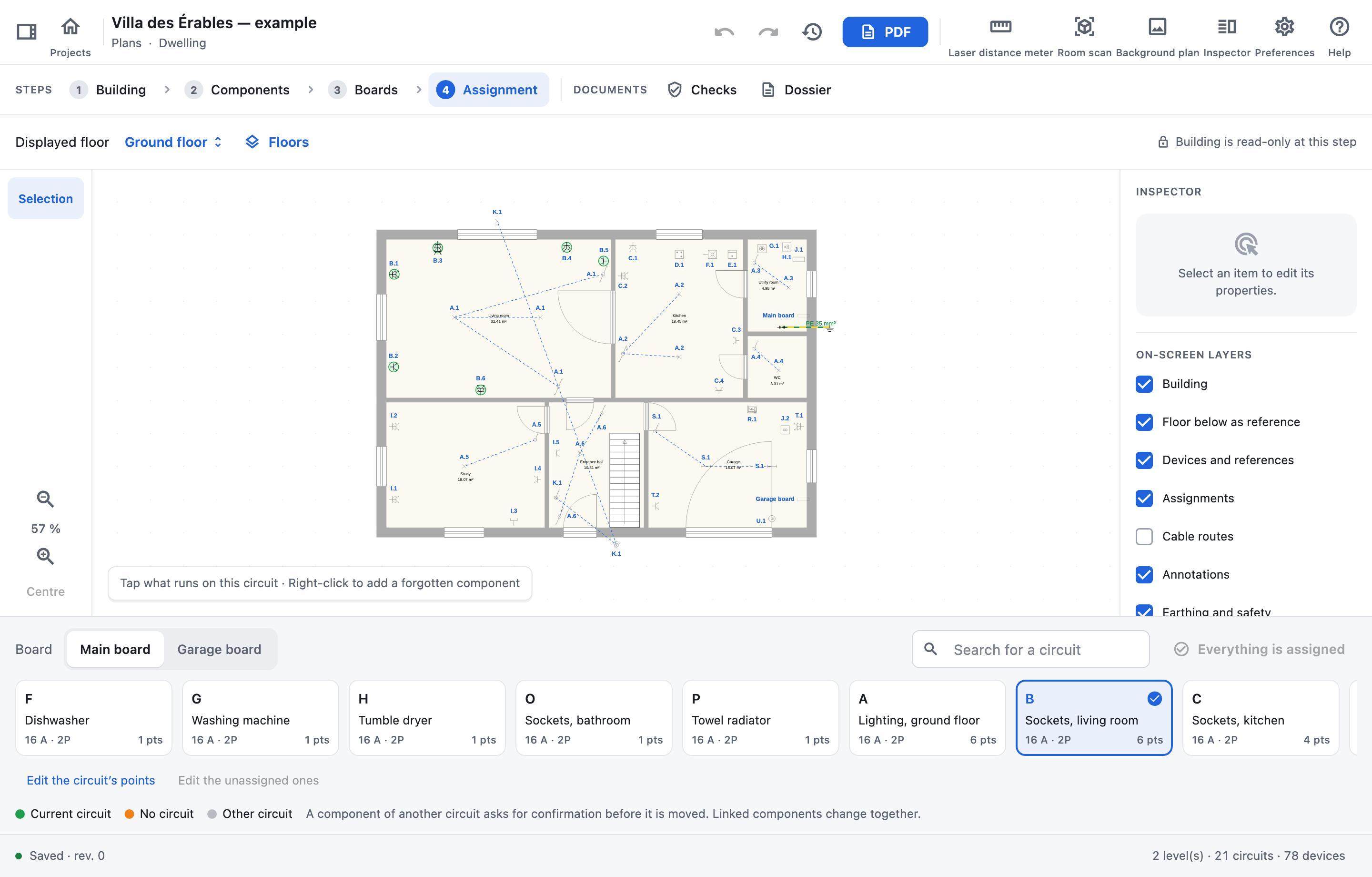
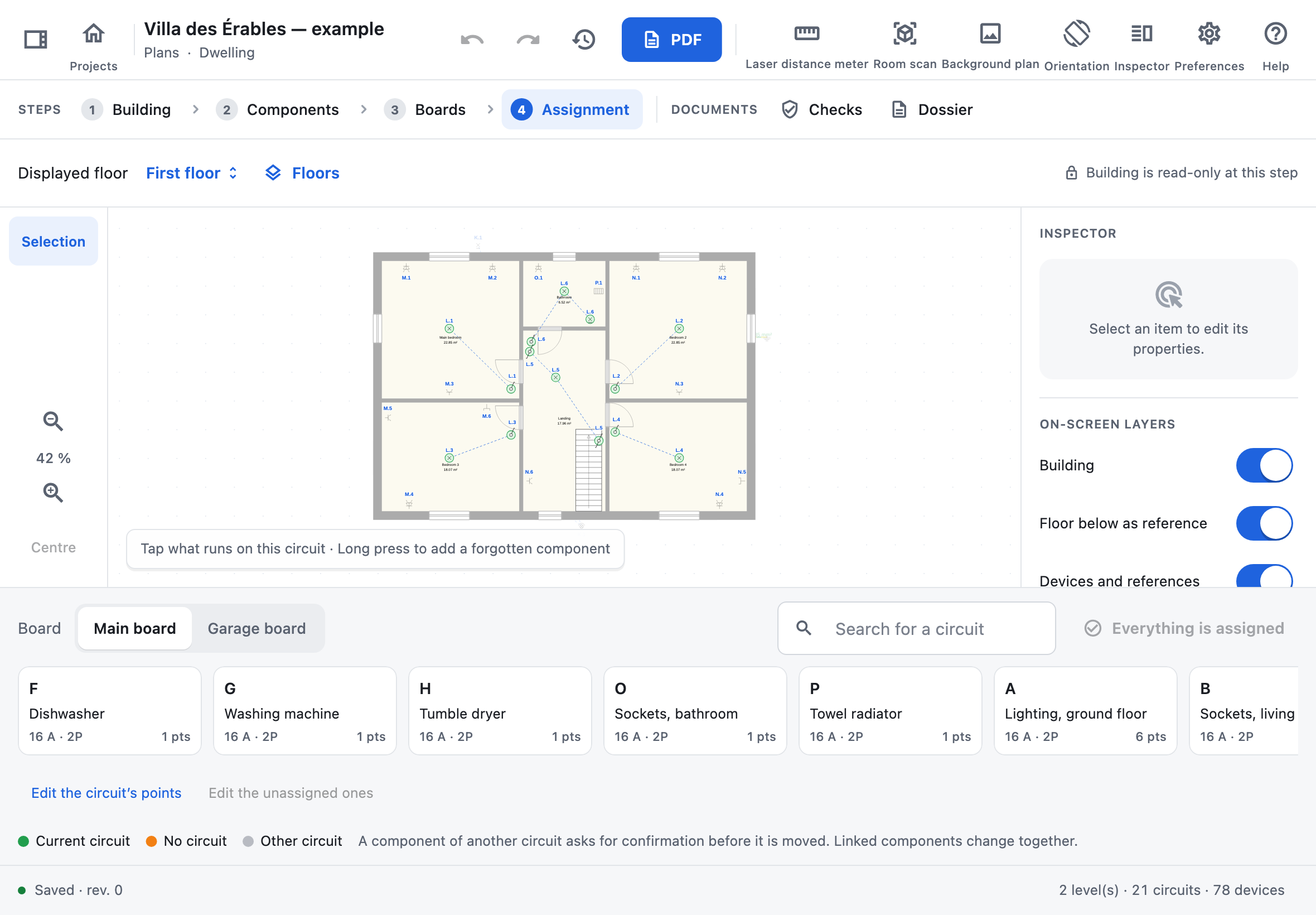
- In the palette at the bottom, choose the board then the current circuit (search helps on large boards).
- Tap everything on the plan that works with this circuit. Tapping a component of the circuit again removes it.
- Move on to the next circuit. The “N unassigned · M on this floor” counter shows what is left (tap it to show a forgotten component); it becomes “Everything is assigned”.
Colours and rules:
- Green: current circuit. Orange: no circuit. Grey: another circuit.
- A component already on another circuit: the app offers “Move to …” or “Remove from circuit …”.
- Components linked with “Assign” always change circuit together.
- For a home automation module, choose the output used.
- An RCD with no device downstream is also in the palette: choosing it gives it its circuit, which takes a reference, and components are assigned to it directly. To place a device downstream later, release those components first.
- A three-phase EV charger or inverter from the catalogue is refused on a circuit supplied by a single-phase network. In an EV charger or photovoltaic project, assigning the charger or the inverter to a circuit sizes that circuit for it.
“Edit the circuit’s points” lists the points in order: you can reorder them (the references are renumbered), remove one or show it on the plan. “Edit the unassigned ones” lists the components without a circuit in the same way.
“By rounds” (in the palette) identifies every circuit breaker in a few rounds instead of one round per circuit breaker: 24 circuit breakers in 6 rounds. At each round, the app says which circuit breakers to switch off and on; on the plan you only tap what is off. After the last one, what came on or not names the circuit breaker of each point, and a reading error shows straight away.
By rounds:
- Choose the board or boards, the circuit breakers set to “Always on” (a compressor, a server rack; safety circuits are by default) and the points observed: sockets and light points, plus the appliances you add.
- Before you start: a test lamp in every socket, every switch on.
- At the board: set the circuit breakers as the drawing shows (“Switch off QA, QC · Switch on QB”), then “Circuit breakers set”.
- On the plan: the app leads you from room to room in the order of the route, the current room tinted and framed. Tap what is off there, then “Next room”: points not tapped count as on. “Everything is off” turns the room off in one gesture, “Room closed” notes a room you cannot enter, “Not observed” the last point tapped (a missing lamp). To go elsewhere, tap the room on the plan or in the route. A room not seen is pointed out before the round ends.
- In the last round, the current room shows the result of each of its points: its circuit breaker, or a reading error in red, to correct on the spot.
- The review groups the proposals (ticked), the conflicts, the points to check and the confirmations, with the new RGIE findings. “Apply” saves everything as a single change: a single undo reverts it.
Rules of the rounds:
- Rounds pay off from 5 circuit breakers (4 rounds for 5 or 6); up to 4, the one-at-a-time method takes no more rounds and the app offers it. In exchange for fewer rounds, about half the points are off in each round: some 3 taps per point instead of one. “Everything is off” keeps that extra cost low.
- An RCD protecting other devices and the supply of a sub-board stay on for the whole session.
- Several circuits on one circuit breaker share its code: choose the circuit in the review. For a home automation module, choose the output too.
- A point already assigned to another circuit is never moved without your choice (“Move” or “Keep”). Components linked with “Assign” must name the same circuit breaker.
- Always on: fed from outside the session (another board, a circuit breaker left on). Always off: no voltage, a dead lamp or an open switch. A reading error offers the possible circuit breakers: “Switch on Qx only: does the point come on?”.
- A single “Not observed” reading is rebuilt; beyond that, the point is incomplete.
- Each round says which rooms to visit, in the order of the shortest walk from the board placed on the plan: through the doors and up the stairs (with no board placed, the shortest between the rooms). As soon as a point’s readings match a single circuit breaker, its later rounds are deduced: its room can be skipped (“Deduced” on the plan). A deduced reading is not checked: an earlier mis-tap on that point would not show, and the review marks those points “Deduced”. A deduced point tapped anyway is read again.
- The session stays on the device and resumes after a restart, without the components deleted in the meantime.
- With two people: open the project on a second studio, or in the ES Schémas Mobile app on the phone left at the board (“Assignment by rounds” on the project page). Each round shows the board to set there; “Circuit breakers set” starts the round on every device. Sharing goes over the internet; offline, each device carries on and catches up as soon as it is back.
5 · Tertiary documents
External influences, escape routes and safety installations of a tertiary project.
The “Tertiary documents” step (the fifth of a complete installation) only appears for the “Tertiary” installation type. Each document of the dossier has its section there: on the left, its status (complete or items to complete); in the centre, its content; on the right, its sheets as they print. Changes apply straight away and can be undone as elsewhere.
The three documents:
- Table of external influences: name the locations, tick “Public” for those open to the public, then choose a “Preset” taken from the RGIE examples or the codes one by one. Without specific influences, the non-specific influences of table 9.1 apply.
- Escape routes: the role of each location (escape route, public of 50 people or more, difficult evacuation), the exits door by door and the assembly point.
- Safety installations: each installation with its autonomy, its source and its reference standard, the critical installations, and the conclusion, written yourself or drafted from the evacuation time.
The same information can also be edited in the inspector of a zone (influences, public, evacuation) and of a door (exit).
EV charger and photovoltaics
Two project types with a simplified route: one page for the charger or the photovoltaic installation (and its roof), then the plan and the board.
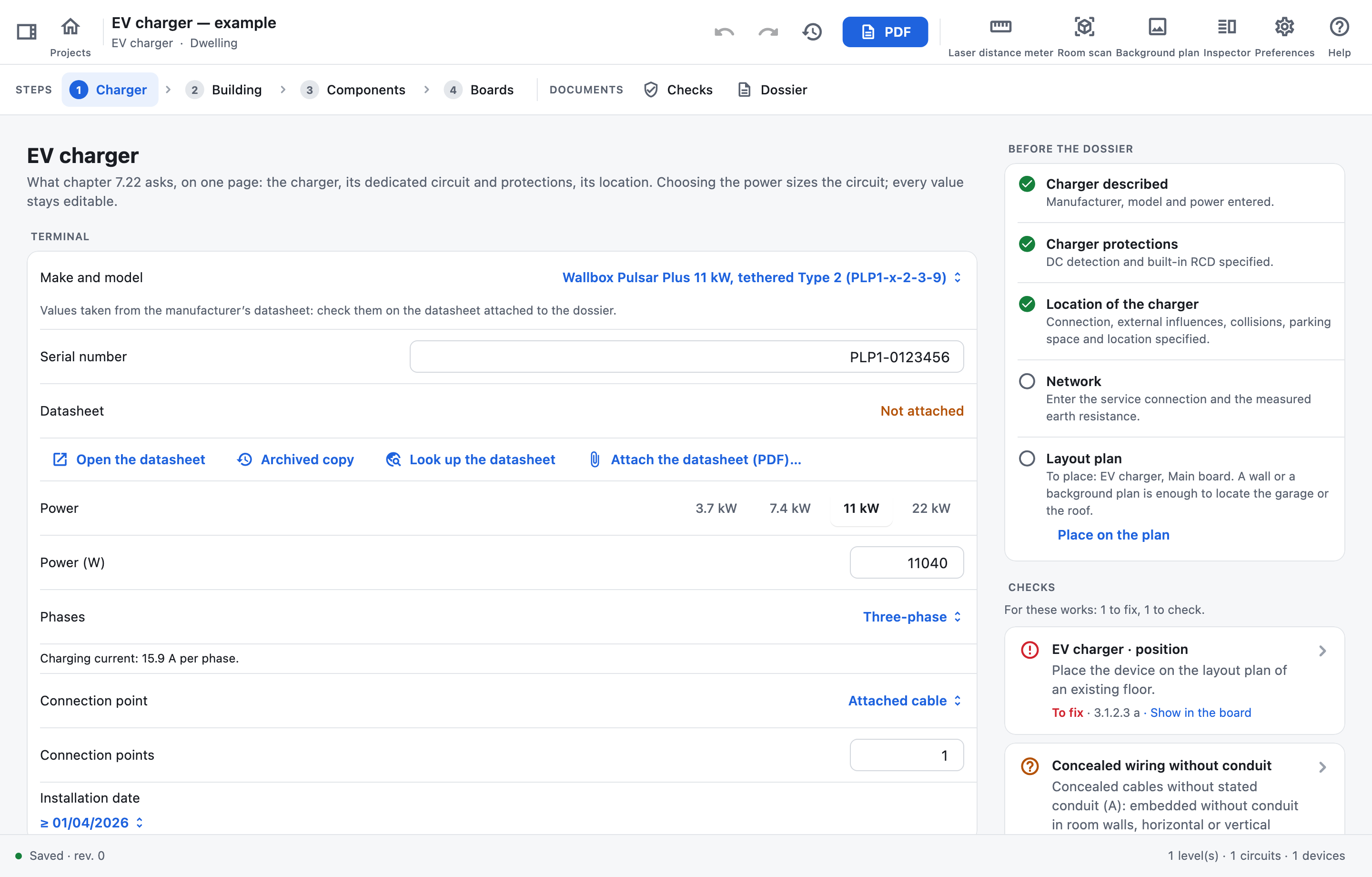
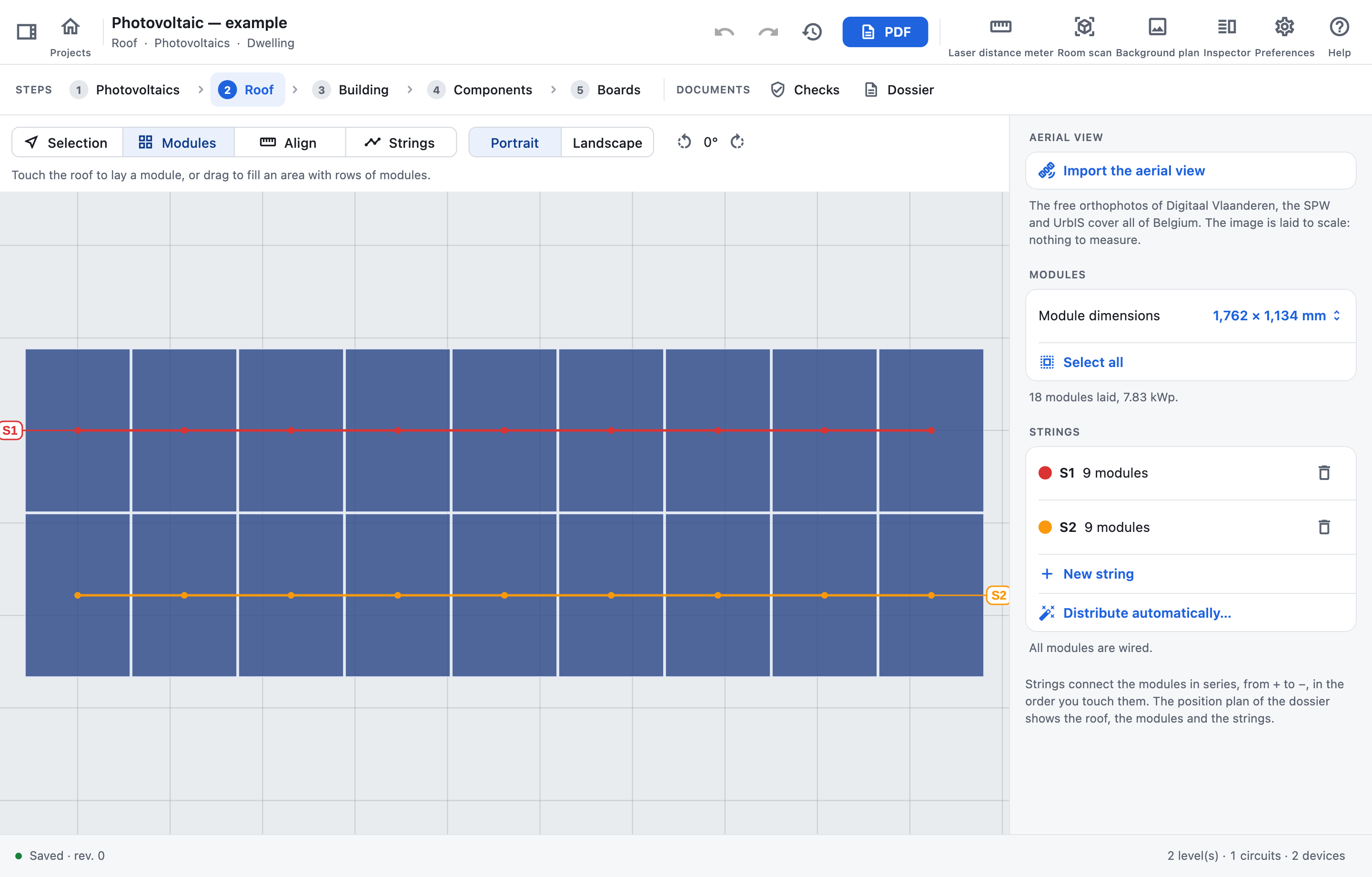
When you create a project, “Project type” offers “Complete installation”, “EV charger” and “Photovoltaics”. The last two document works added to an installation: the project starts with the network, the main board and its 300 mA main RCD, then the dedicated circuit of the charger (30 mA RCD and circuit breaker) or that of the inverter, already assigned. The “Installation type” (dwelling, tertiary, common areas) keeps its meaning: a charger at a private home is still a domestic installation.
The route:
- “1 Charger” or “1 Photovoltaics”: a single page gathers what the RGIE asks for these works. Choosing the power of the charger (3.7, 7.4, 11 or 22 kW) or of the inverter sizes the circuit: circuit breaker, RCD protecting it alone, poles and cable. Every value stays editable. “Make and model” offers common chargers, inverters, modules and batteries: choosing one takes the data of its datasheet (power, protections, dimensions); “Other…” lets you type them.
- “2 Roof” (photovoltaics): “Import the aerial view” locates the site from its address, coordinates or a pasted map link, and lays the Region’s free orthophoto (Digitaal Vlaanderen, SPW, UrbIS) to scale on the “Roof” level; “Opacity” fades it. “Modules”: tap to lay a module, drag to fill an area, in “Portrait” or “Landscape”, turned degree by degree; “Align”: drag along a gutter or a ridge to orient the next modules; “Selection”: tap modules to move, turn or delete them; “Strings”: tap or sweep the modules in wiring order, from + to − (tapping the last one again removes it). “New string” starts another one; “Distribute automatically…” wires the modules row after row, from left to right, in groups of “Modules per string”, replacing the strings drawn. “Module dimensions” offers the common formats or custom dimensions.
- “Building”: a few walls or a background plan are enough to locate the garage or the driveway.
- “Components”: the “To place (N)” family of the palette lists the project’s devices that are not on any plan (charger, inverter, battery, modules not laid on the roof); tap one, then the plan. “Place on the plan”, in “Before the dossier”, does the same. Place the board too (“Boards” family).
- “Boards”: complete the board with its other circuits if needed. The “Assignment” step only appears when a component on the plan is waiting for its circuit.
What the page asks:
- EV charger (chapter 7.22): manufacturer, model, serial number, power and phases, connection point, execution date; protections built into the charger (6 mA DC fault detection, 30 mA RCD, overcurrent); location (permanent connection, in the open air and IP rating, external influences, collisions, emergency switching outside a dwelling, connection point near the space, outside BE3 locations); feeding back and its warning; load management and its maximum current, which the circuit is then sized for (several 22 kW chargers on one circuit). “Add a charger” creates another charger on a dedicated circuit of its own. “Phases”: a charger is connected as “Single-phase” on any network; “Three-phase” is only offered on a three-phase network.
- Photovoltaics (chapter 7.112 and section 9.1.2): modules (peak power, number, strings), DC wiring, inverter (type, serial number, AC power, phases, automatic disconnection, DC isolator), any battery, earthing of the frames, warning signs, conductor marking and documents handed to the client. Another module array has its own product, power, dimensions and number of modules; several inverters (“Number of inverters”, one serial number each, separated by commas) each have their own “Connection to the board”; above 10 kVA, the page reminds you that chapter 7.112 does not apply. The battery goes on the circuit of a hybrid inverter; a modular battery is described by its “Number of modules” and its “Usable capacity per module (Wh)”. The earthing conductor of the frames needs 2.5 mm² if it is “Mechanically protected”, 4 mm² otherwise.
- Existing installation: installation type, “Network” and “Earthing system” (“To be chosen” as long as nothing is chosen), “Service connection (A)”, measured “Earth resistance (Ω)”, “DSO” and “EAN”.
- Datasheet: for a catalogue device, “Attach the catalogue datasheet” adds it directly (signed in to the ES Schémas account), “Open the datasheet” opens it at the manufacturer and “Archived copy” on archive.org if the manufacturer’s link no longer answers; otherwise “Look up the datasheet” searches the PDF online from the make and model, and “Attach the datasheet (PDF)…” adds it to the project. Its pages are annexed to the PDF dossier.
- My devices: a device entered with “Other…” (make, model, link to its datasheet) is saved with “Save to my devices”, with its attached datasheet; “Make and model” then offers it in every project, followed by “· my devices”. It stays on this device, for your account.
- Every question is answered “Yes”, “No” or “To be specified”. An answer moves the related checks from “To check” to “Verified” or “To fix”: a charger without DC fault detection thus needs a type B RCD, which “Switch to type B” sets on the 30 mA RCD that protects only that charger; a shared RCD is never changed.
- The inverter stays alone on its circuit (only its modules, its battery and its DC converters may be on it, on its DC side): another point on that circuit is “To fix” in a dwelling from 2600 W, “To check” otherwise.
On the right of the page (above it on a narrow screen), “Before the dossier” lists what is left to do, then the checks that concern these works. The PDF dossier opens with the technical sheet of the charger or of the photovoltaic installation, with the data the inspection report takes up, then the layout plan (the roof with its modules and strings), the single-line diagram and the list of circuits; the attached datasheets follow as annexes.
Documents
Calculations
The calculation note of a tertiary project: currents, cross-sections, voltage drops, short circuits and protections.
For tertiary projects only (installation type “Tertiary”): a dwelling follows table 4.11 and the domestic rules, checked in “Checks”. For each board, the note gives the prospective short-circuit current, the voltage drop upstream and the demand; for each circuit, the design current IB, the protection, the wiring and its current-carrying capacity IZ, the voltage drop from the origin, the maximum and minimum short-circuit currents and the protected length.
Each check cites its article and gives its values:
- IB ≤ In ≤ IZ, with the conventional currents of circuit breakers and gG fuses (4.4.3.2).
- Breaking capacity against the board’s prospective short-circuit current, back-up protection included (4.4.2.1, 4.4.1.3).
- Minimum short-circuit current at the end of each wiring run and protected length (5.3.5.5 h).
- Thermal stress I²t ≤ k²S² at the maximum short-circuit current (4.4.2.1).
- Automatic disconnection (4.2.3.4): in a TT system, I∆n × RE ≤ UL with the “Earth resistance (Ω)”; in a TN system, the fault loop within the time of the safety curve; the IT system is not calculated. Protective conductor (5.4.3.2).
- Voltage drop from the origin: 3 % for lighting, 5 % for other uses, plus 0.005 % per metre beyond 100 m (0.5 % at most) (5.2.5, 5.2.1.2 b, rules of good practice).
- Demand of each board against its head device and the main circuit breaker, with diversity (3.2.1).
- Rated current of the RCDs and the powerline filters, neutral included (4.4.1.1).
- Prospective short-circuit current of each board, shown on the diagrams and the labelling (3.1.2.2 b, 3.1.3.3 b).
- Selectivity of the safety circuits, to be confirmed by the manufacturer’s tables (5.5.7.1, 5.5.7.2).
Enter, in “Installation” (Boards page, or the “Meter” card), the “Prospective Isc at the origin (kA)” given by the distribution system operator and, in a TT system, the measured “Earth resistance (Ω)”; then for each cable its installation method, its length (“Auto (layout plan)” will do), its ambient temperature (the ground’s, 20 °C by default, when buried) and the number of grouped circuits: IZ follows NBN HD 60364-5-52. The insulation and the conductor follow from the cable type (XVB: XLPE). A socket outlet without a power counts for the rating of its protection. Inverters and batteries count in the currents and the short-circuit current: enter their power.
The “Calculations” page counts what is “To fix” and “To check”, recalls the “Assumptions”, then gives each board, its checks and its circuits: tap a circuit for its checks; “Show in the board” opens its board, its device selected on the rail.
Checks
The dossier’s RGIE checks: what needs fixing, then what needs checking.
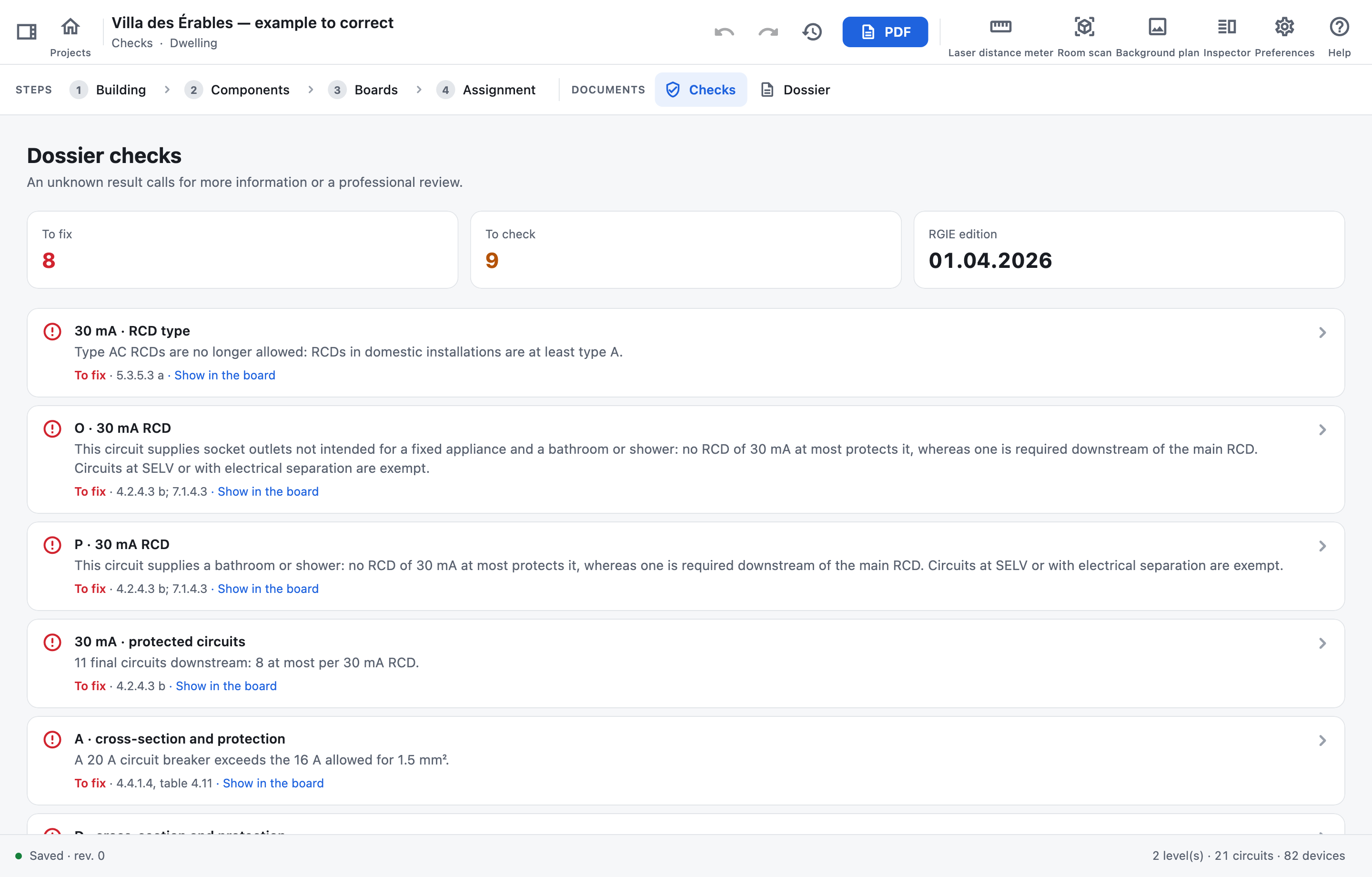
Findings are sorted by urgency: “To fix” first, then “To check” (missing information or professional review needed); each finding cites the article concerned. Tap the “To fix” or “To check” counter to show only those findings, and tap it again to see both again. Compliant items are hidden: “Also show the N compliant items”, below the list, shows them.
A finding tied to a component shows “Show on the plan”: tapping it opens its floor, with the component selected in the middle of the view. A finding tied to a board, a protective device or a circuit shows “Show in the board”: the Boards page opens that board, the device concerned selected on the rail and in “Selected item”. Findings about the project as a whole (identification of the site, labelling…) are corrected in the title block or the boards.
In the properties of an RCD or a circuit breaker, state its markings when you know them: the isolation function of the RCD at the origin, the “3000 A, 22.5 kA²s” marking of an RCD of 40 A at most, the energy limitation class 3 of a first-line circuit breaker (“Plug-in circuit breaker” for the one the rule leaves out). A device stated without one of them is weighed against its installation date: derogations 8.2.1 and 8.2.2 keep it in service if it is old enough. Not specified, it is not checked.
Dossier and PDF
Title block, page layout, choice of sheets, export of the PDF and the archive.
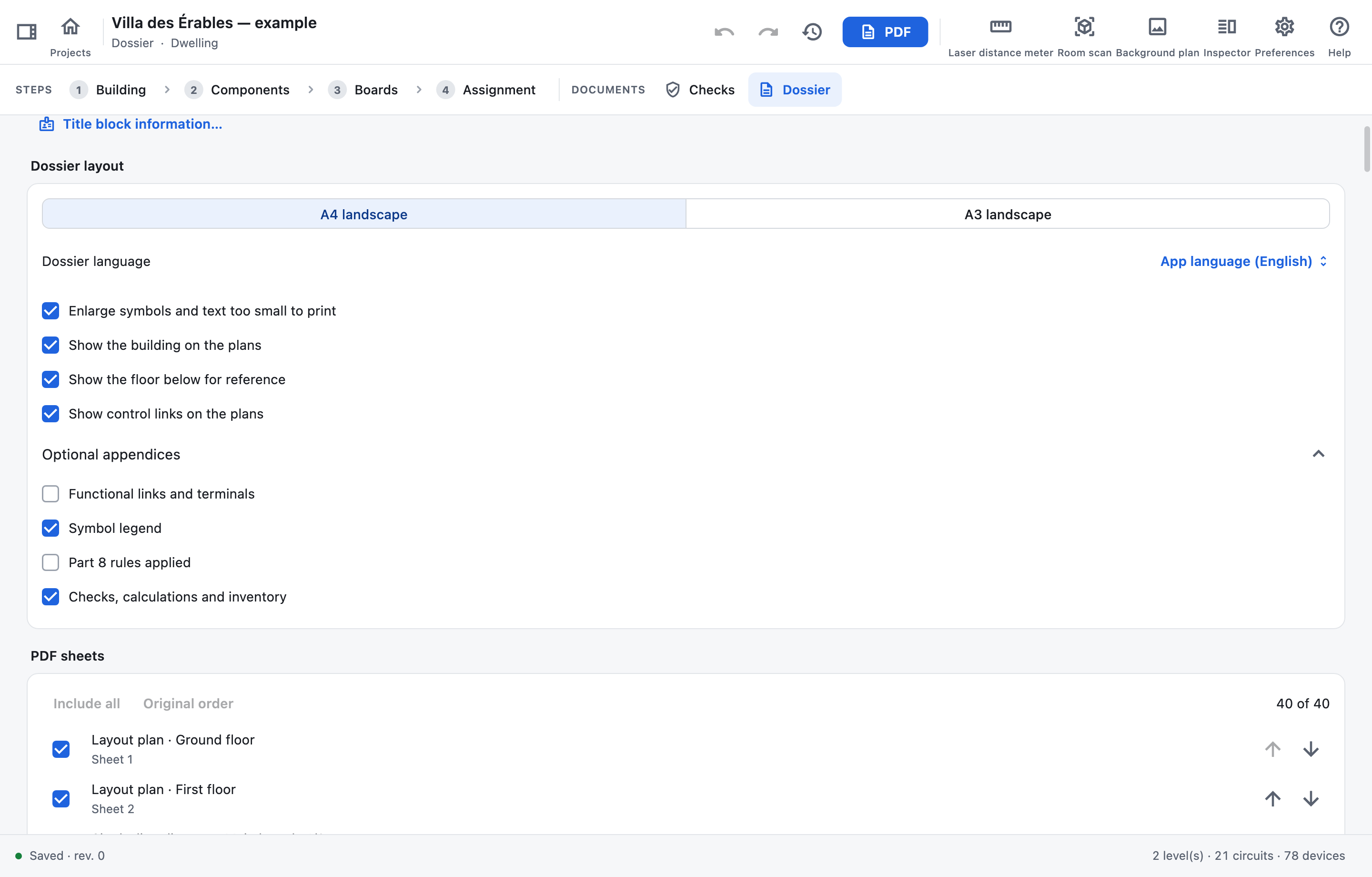
- “Dossier” page: tap “Title block information…” for the installer, the inspection body, the site and its installation type, the client, the signatures and the logo.
- Set the “Dossier layout”: A4, A3 or A2 landscape, “Dossier language”, enlarged symbols, building, lower floor as reference, background plans, control links, optional appendices. The dossier can be written in French, Dutch or English, cited RGIE articles included, whatever the app’s language: by default, it follows the app.
- In “PDF sheets”, choose the sheets to include (checkbox on Mac and Windows, switch on a tablet) and change their order with the arrows: the numbers and the cross-references follow. New sheets are included automatically; a cross-reference to an excluded sheet reads “omitted”. A layout plan whose symbols a single sheet of the format would print too close together is sliced, across or along, onto the sheets it fills best, at one scale: each is titled “2/4”, with a key beside the title and a “Continued: 3/4” match line in the band two neighbouring sheets share. Untick “Slice over several sheets” under its first sheet to keep it on one.
- Tap “PDF” (header) or “Open the PDF”: the dossier is prepared then opens in the device’s PDF viewer (Preview on Mac, Quick Look on iPad, the default viewer on Windows and Android), from where you can print, share or save it.
The dossier can contain:
- EV charger or photovoltaic project: the technical sheet of the works, first.
- Layout plans (one per floor).
- Single-line diagrams, with the connection to the network drawn under the board it feeds.
- Board layouts and terminal blocks, then the list of circuits of each board with their descriptions.
- Tertiary project: table of external influences, plans and list of escape routes, list of safety and critical installations.
- As annexes: the datasheets attached to devices and, when a title block field overflows, its full text.
- Optional (“Optional appendices”): functional links and terminals; symbol legend, added automatically for a symbol the RGIE does not define (three-phase socket, shutter control, powerline filter, phase coupler); Part 8 rules applied (the start of execution, the installation’s regime and the checks that apply Part 8, by section); “Checks, calculations and inventory” (the calculation note of a tertiary project, then the checks and the inventory).
Tertiary project: these three documents are completed at step 5, Tertiary documents. When something is missing from them, the Dossier page says so and “Complete” opens the document concerned.
The single-line diagrams (“Single-line diagram · board”) show all the circuits and their continuations, generated from the electrical model: to change them, edit the boards (step 3) or the assignments (step 4). Upstream protective devices repeated from one sheet to the next are the same devices. Each RCD is named by the circuits it protects, in reference order (“30 mA (A–G)”, “300 mA (all circuits)”); a continuation on another sheet carries the name of its device.
A sub-board ends the outgoing circuit that feeds it, drawn with the board symbol and its name. An EV charger or an inverter sits at the end of its circuit; the DC side of an inverter or of a battery’s converter (modules, batteries) branches off separately, marked “DC”. The connection to the network (meter, main circuit breaker, cable, DSO) is drawn under the board: Boards page, “Connection and meter” › “Show the incoming supply” puts it on a “Separate sheet” or hides it.
“Save the .esschema archive” exports the complete project; “Import an archive” opens a copy of one.
Tools
Laser distance meter
A Bosch or Leica Bluetooth laser distance meter sends its measurements straight into the app.
- Switch on the meter and turn on its Bluetooth.
- Tap “Laser distance meter” in the header, then “Search for a laser distance meter” and “Connect”.
- Measure: the measurement fills the length field (in metres) you are editing and confirms it. With no active field, it goes to what you are doing on the plan: the scaling of a background plan, the distance from an opening to the chosen wall, the next wall in “Quick mode”, otherwise the length of the last wall drawn. An active field in another unit holds it back: it does not touch the plan.
“Quick mode” of the Wall tool: go round the room anticlockwise, measuring each wall. To place the room, first draw the start of the first wall by hand: the first measurement gives its length. Otherwise the room starts in the middle of the view, or beside the walls already drawn if it would cross them, the first wall going right. Each measurement draws the next wall, a quarter turn left of the previous one; “Invert”, next to the new wall, turns it right instead. The measurement applies to the inside face. A pale wall shows where the next measurement will go: “Next: left” beside it turns it right before measuring, for the following walls too: chosen at the first corner, it walks the room clockwise. “Invert” turns a single corner. “Rotate” turns the first wall of a new room a quarter turn. Without a laser (or on Windows), type each length in the panel at the top of the plan, then Enter: it counts as a measurement, diagonals included.
At the last wall, tap “Close the room”: the corners, rarely square, are corrected so that the room closes without changing the lengths measured. Lengths alone cannot see a room that leans: the diagonals still useful show dotted (A, B…) with their count. Measure one from corner to corner: the measurement goes to the diagonal of the same length; if several could match, tap the right one. “Finish” keeps the room without the remaining diagonals. The panel shows the gap between the last wall and the first corner: beyond 10 cm (or 2 % of the room’s perimeter), “Close the room” refuses; check the measurements and the direction of the walls. Esc ends the current room: the next measurement starts another one.
Supported models: Bosch GLM or PLR with Bluetooth (GLM 50 C, GLM 100-25 C, PLR 30 C…) and Leica DISTO with Bluetooth Smart (D1, D2, D110, D510, D810 touch, X3, X4…). The meter is remembered: it reconnects on its own when the app opens and when the meter wakes up. “Disconnect” leaves it disconnected until the app next opens, even if Bluetooth goes off and comes back; “Search for a laser distance meter” then “Connect” brings it back sooner. “Forget this meter” erases it. It is only shown as “connected” once it is ready to send its measurements; “readings unavailable”: switch it off and on again, or report this model.
Room scan (iPhone)
Import a room scanned with the iPhone’s LiDAR (ES Schémas Mobile).
- On an iPhone with LiDAR (12 Pro or later), open ES Schémas Mobile, Scans tab, and tap “Scan rooms”: go round each room and tap “Room done” before the next one; the rooms stay joined together. Scanning does not need an account.
- In the studio, open the level and tap “Room scan”. On iPad, the iPhone sees this iPad as long as the window stays open: in the scan, tap the iPad to send it. On Mac, Windows or Android, share the scan file to this device, then “Choose scan files…”.
- Check the preview: orientation, “Straighten on the walls”, outer wall thickness, names of the recognised rooms.
- Tap “Import”. Walls, openings and room names arrive on the displayed floor, selected: drag them to adjust them.
Several scans can wait in the “Room scan” window: “Discard this scan” removes one, “Add files…” loads others (on iPad too). The import switches to the Building step and places the scan in the centre of the view.
The import is undone in one go with “Undo”. Doors and windows too far from a wall are ignored. No Internet connection is needed: the iPhone and the iPad talk to each other directly, over Wi-Fi or Bluetooth.
Background plan (scanned plan)
Draw on a scanned or photographed architect’s plan, brought to scale by a measurement taken on site.
- Open the level and tap “Background plan” in the header. Choose the plan: a PDF or a JPEG, PNG, TIFF, BMP, GIF or WebP image of 60 MB at most (on iPad, “Photo from the library…” works too). For a PDF of several pages, tap the one of the level among the first 40. The plan lies under the floor shown, half transparent.
- “Scaling” opens at once. Choose a length you can measure on site, as long as possible (a façade, a long wall, an opening), and tap its two ends on the plan: A, then B. Zoom in to aim precisely; drag A or B to adjust them.
- Measure that length on site, then enter it and tap “Apply”. With a laser distance meter connected, the measurement applies by itself once A and B are placed. The plan takes the scale; A stays in place.
- Then draw the walls over it, or place the components directly on the plan.
“Straighten on A–B” also turns the plan so that A–B is horizontal or vertical: handy for a crooked scan or photo. The “Background plan” panel then moves it (drag it; on a tablet, hold it, then drag), turns it a quarter turn, sets its opacity, replaces or deletes it; “Set the scale” measures again. “Finish” or Esc closes the panel, “Background plan” opens it again.
Each floor has its own background plan. The “Background plan” layer of the inspector hides it on screen; in “Dossier layout”, “Show the background plans under the layout plans” decides whether it appears in the PDF: this setting only appears once a background plan is placed, and can only be changed with “Show the building on the plans” on. The image is kept in the project and synchronized with it, reduced to 4,096 pixels on its longer side.
A PDF is turned into an image when it is imported: an architect’s plan on A0 keeps about 0.3 mm of the sheet per pixel. A PDF protected by a password cannot be read: save the page as an image.
Read a board from photos
Survey the devices of an existing board from photos, then check them before creating them.
- In “Boards”, tap “Add a board”, then “From photos…” (signed-in account only; “Manual composition” adds an empty board). Photograph the board with its cover removed, so that the comb busbars and the wiring show. Under “Read by”, choose the model reading the photos: “Claude Sonnet” reads ordinary boards well, “Claude Opus” is more reliable on large boards and for comb busbars; the last one chosen is offered next time. Then choose one to three photos: the whole board from the front, or its top and bottom halves if it is large.
- On site, the phone reads the board too: in ES Schémas Mobile, open the project, tap “Read a board from photos”, choose the model and the photos, and keep the app open while it reads. The board read then waits in the studio: it shows in the project’s “Boards”, under “… board read from photos to review” (at once if the studio has the project open); “Verify” opens it, the bin discards it.
- The photos are cut at full resolution and sent to the service, which has Claude (Anthropic) read them. The reading takes one to two minutes. If it fails, “Try again” starts it again and “Try again with …” hands it to the other model, without sending the photos again; at the review, “Read again with …” does the same when the reading does not suit (the values filled in are then lost). “Read again” is only offered on the device that read the photos.
- The reading shows the proposed board in the layout view itself, beside the photos (“Photos” shows or hides them; pinch or scroll to zoom): the devices in their places and at their widths, their ratings and designations, the comb busbars and the wires in the colour of their section, with their legend. A device with an unreadable value is amber and marked “!”, the missing value shown as such (“C?”); a value read without certainty tints the device and marks it “?”. “Next” goes from one to the next; touch a device or a comb busbar to correct it beside the board (device, width, rating, curve, sensitivity, supply, side and span of a comb busbar…), or “Values checked” when what was read is right. A blanking cover is hatched; a device not created keeps its place, to touch to create it. For each row, the sum of the widths read is compared with the length of the rail: a difference points to a device missed or counted twice, and the row is marked “!”. Nothing is added to the project during the check.
- Tap “Create the board”: it is added in a single change, as proposed, each device in its place in the layout (blanking covers and devices not created left empty). The comb busbars are laid there as “Add a comb busbar” lays them; a device off a comb busbar is wired to the device feeding it, or to its comb busbar. “Close” leaves the reading waiting in “Boards”; “Discard” deletes it with its photos. A reading given up adds no board.
The reading does not replace the survey: nothing is filled in out of habit (no “16 A” because the neighbours are), and no wire is assumed: a device is attached to another only by a comb busbar seen, or by a wire followed along its whole length. Blanking covers and devices the app does not know (time switch, terminal block) are not created. The cable sections, invisible on the photo, take the value proposed for the rating, to be checked as for a manual addition.
The photos stay at Anthropic while they can be read again, and are deleted there as soon as the reading closes, an hour after they were sent at the latest. The service keeps the reading and its photos while it is checked, for your account only: they are deleted as soon as the board is created or the reading discarded, and after 7 days at the latest. Each account can read 20 boards a day.
Sync between devices
Find your projects on Mac, iPad, Android and Windows with your Google, Microsoft, Apple or email account, and work together with your team.
- On the home screen, tap “Sign in”, then “Continue with Google”, “Sign in with Microsoft”, “Continue with Apple” or enter your email address and your password.
- If there is no account for this address, the app offers to create one: choose a password of at least 8 characters, then enter the six-digit code received by email (valid for 15 minutes). If you forget your password, tap “Forgot your password?”, enter the code received by email and choose a new one: your other devices will need to sign in again.
- Projects then sync on their own: your changes go out a few seconds after the last one (sooner when another device has the project open), and those of your other devices and of the team arrive straight away, as long as the app’s window stays displayed, even when it is not in the foreground. Only the changed parts are sent: moving a wall transmits a few kilobytes, even in a project with heavy attachments. “Sync” forces an immediate upload and retries the pending projects.
- What is synced: projects, their names, duplicates, imports, the trash, restores and permanent deletions.
- What is not: the default installer’s signature, kept on each device for your account.
- “Versions”: the synced versions of a project (all those from the last 30 days, then one per day); “Restore” makes it the most recent version, the current version staying in the history.
- “Sign out”, under “Account”, stops sync and hides the projects: they stay on the device, linked to your account, and come back when you sign in. “Sign out of all devices” closes the account’s sessions everywhere, this device included: each one will need to sign in again.
- Without a seat on a company licence, an account has its own space: nobody else sees its projects. A Google, Microsoft, Apple or email account stays separate from the others, even with the same address. Your projects are linked to your account: sign in to see them. Once signed in, everything also works offline, even after closing the app.
- In a company, the users of its licences share one space: each of them sees and changes every project of the team. The projects an account already had join it when it gets its seat. An account that gives its seat back or leaves the company leaves the projects with the team: they are removed from its devices. Those the team never received stay on the device, without sync: the sync status counts them, and “Sync it” or “Sync them” sends them to the space the account now works in.
- On a phone, ES Schémas Mobile (iPhone, Android), signed in to the same account, shows the same projects, offline included: client, site, EAN and PDF dossier. The name, the installation type, the addresses and the EAN can be changed there with “Edit details”.
The same project can be changed on several devices at once, yours or your colleagues’, for example the plans on one and the boards on the other: the changes are merged within seconds. Under the project name, “Also open on …” shows your other device, “Also open by …” the colleague, and “Being edited …” that someone is working there. Work received is added to the open project without interrupting yours: a drawing, a drag or an entry in progress carries on. “Undo” only undoes the changes made on this device, and refuses when another device has since changed the same items.
In case of a conflict (the same item changed differently on both devices, or deleted on one and changed on the other), no version is lost: yours is kept in a copy “… — local conflict” to compare; if the project was open, the studio opens that copy.
Gestures and shortcuts
Get around the plan with your finger, the mouse and the keyboard.
Tablet:
- Move the plan: with “Selection”, drag from an empty area; or drag with two fingers, the only gesture that moves it with another tool. At the Assignment step, dragging always moves it.
- Zoom: pinch; or “Zoom in” / “Zoom out”; “Centre” fits the whole floor.
- Move an object: hold it for a moment (a small vibration), then drag. A quick drag from an object moves the plan. The handles of a selected object (ends of a wall, corners of a staircase, points of a guardrail, edges of an opening) can be dragged without waiting.
- Putting down a second finger cancels the editing gesture in progress.
- Long press at the Assignment step: add a missing component to the current circuit.
- In multi-selection, “Remove from the selection” removes the elements you tap.
- Boards page: long press on a row of “Circuits” to drag it onto another device; in the layout, short press on a module to drag it.
Mouse and trackpad:
- Move the plan: scroll wheel or trackpad scrolling, or drag from an empty area.
- Zoom: pinch on the trackpad, or ⌘ + scroll wheel (Ctrl + scroll wheel on Windows).
- Move an object: drag it; a click that moves by a few pixels does not move it. With the “Wall” tool, a click on a wall selects it: only a drag draws.
- Right-click at the Assignment step: add a missing component.
- Ctrl-click in multi-selection: remove an element from the selection.
Keyboard:
- Esc: end the drawing in progress (the “Quick mode” room included), leave multi-selection or the “Background plan” panel, and go back to “Selection”; close a form.
- Backspace or Delete: delete the selection (except at the Assignment step).
- ⌘Z / Ctrl+Z: undo. ⌘⇧Z / Ctrl+Shift+Z (or Ctrl+Y): redo.
- ⌘= / Ctrl+= and ⌘- / Ctrl+-: zoom; ⌘0 / Ctrl+0: fit the plan to the window.
- Arrows: move the selection (Shift for a fine step), except at the Assignment step. ⌘D / Ctrl+D: duplicate the selected component, opening, staircase or guardrail; ⌘A / Ctrl+A, at the Building step: select everything on the level, in multi-selection.
- In a text field, these shortcuts act on the text, not on the project.
- ⌘W / Ctrl+W: close the project.
- F1 (fn + F1 on a Mac laptop keyboard): open the help.
- Enter: confirm a form.
- On Mac, the “File”, “Edit”, “View” and “Help” menus include these commands.
- During the guided tour, the plan shortcuts are suspended: → or Enter moves forward, ← goes back, Esc leaves.
Good to know
Licence
Your company’s free access, the printed identity, your devices and your team.
Registering your company:
- Sign in, then tap “Account” on the home screen.
- Enter the “Enterprise number (CBE)”, then tap “Look up in the CBE”.
- Choose the “Name to print” and the “Address to print” from the official records, fill in the phone number and e-mails, confirm that you are authorised to represent the company, then tap “Register the company”.
- We then check your authority and the VAT number (“Check under way”): the free trial starts when we validate the company, not before.
The free trial lasts 30 days from validation, once per company, for one user, with every feature and no credit card. Launch campaign: free access lasts through 31 December 2026, or until the end of these 30 days, whichever is later. “Licence” shows the exact date (“Free until …”). The offer is exclusively for companies with a valid VAT number.
- The company’s name, enterprise number, address, phone number and email are printed on every document. They are locked once you subscribe: write to us to change them. During free access, the manager can still choose the printed name and address from the official records, in “Company details”. Signature, date and logo stay specific to each project.
- Company already registered: send a request to its manager, who accepts it in “Account” › “Team”. There the manager also chooses, among colleagues, the users of the company’s licences. A removed user can only be replaced after a delay, unless they had been added the same day. A member can “Leave the company”; a pending request is withdrawn with “Withdraw the request”.
- Learner or teacher of an electrician course: do not register a company. Send us proof for the current year (your certificate of enrolment, or your school’s for a teacher) with your account’s e-mail address to contact@electrosmart.be: we activate the free Education licence. Your name and your school print on your documents, with its mark.
- Each user works on two devices in total, whatever they are (Windows PC, Mac, iPad, Android tablet); ES Schémas Mobile on a phone is not counted. To move to another device, remove one in “Account” › “Devices”: the new one takes its place at once, but the removed one only takes the licence back 8 days later.
- The licence is checked each time the app opens when the network allows it. Offline, it stays valid for 7 days; after that, connect again and tap “Check now”. A banner warns you during the last week of free access, and when you will soon need to connect again; “Licence” opens the details.
- Deleting your account: at the very bottom of “Account”, “Delete my account…”, then type DELETE to confirm. Your synced projects and this account’s projects on the device are erased (the company team’s stay with the team): first export the archive of those to keep. Deletion needs a connection; a manager is warned that the company will be left without a manager: write to us first.
Without a valid licence (free access over, subscription stopped, offline for too long), projects open read-only: you can view them, generate their PDF (with the identity of the licence that ended), export their archive and manage the trash, but you can no longer change them, create, duplicate or import projects (the demo project opens read-only) or print row labels. On one device too many (licence already used on your other devices), or if the device’s clock was set back, even the PDF stays locked: remove a device in “Account” › “Devices”, or set the clock to the right time. Projects started with an Education licence keep its mark on all their documents, whatever licence follows. The “Read-only” banner gives the reason; “Licence” shows how to fix it.
Limitations and responsibility
What the app does, and what it does not guarantee.
- Projects are shared between the users of one company’s licences; with someone outside the company, use the .esschema archive.
- Rebuilding an existing dossier from its scan or PDF (plans and single-line diagrams) is not possible yet: it is in development. Meanwhile, put its plan underneath as a background plan.
- Hiding a layer on screen does not remove it from the PDF.
- On Mac and Windows, ES Schémas only opens once: launching it again brings its window to the front.
- Depending on the device: no laser distance meter on Windows; sending a scan directly from the iPhone only goes to the iPad; row labels print from an iPad, an Android tablet or ES Schémas Mobile.
Frequently asked questions
No question matches this search.
Getting started
Where do I start?
Sign in with Google, Microsoft, Apple or your email address from the home screen: creating a project, even the demo one, requires an account. Then open the demo project to see a complete project, or start the guided tour from Help. Finally, create your project with “New project” and follow steps 1 to 4 in order.
→ See First steps.
How do I document an EV charger or a photovoltaic installation?
Create the project with the “EV charger” or “Photovoltaics” type: it starts with the network, the main board and the dedicated circuit, and its first page gathers what the RGIE asks for these works. Then place the charger or the inverter and the board on the plan, and generate the dossier: it opens with the technical sheet of the works.
→ See EV charger and photovoltaics.
My charger, inverter or modules are not in “Make and model”: what can I do?
Choose “Other…”, enter the “Manufacturer”, the “Model” and the “Datasheet link”, attach the datasheet, then tap “Save to my devices”: the device is offered in all your projects. The same goes for a battery.
→ See EV charger and photovoltaics.
How do I describe a battery with several modules?
Photovoltaics page, “Battery” section, or in the battery’s inspector: choose the product in “Make and model”, then the “Number of modules”; the usable capacity is that number multiplied by the “Usable capacity per module (Wh)”.
→ See EV charger and photovoltaics.
Do I need to save my work?
No. Each change is saved straight away on the device; “Undo” goes back. The status bar shows “Saved · rev. N”. “Version history”, in the header, lists every saved version and lets you go back to one of them without losing the later ones.
→ See First steps.
Why can’t I edit the walls (or the sockets)?
Each step only edits its own layer: the building at step 1, the electrical installation at steps 2 to 4. Go back to the step you need in the “STEPS” bar. A wall can also be protected by “Lock movement”.
Where has the inspector gone?
It hides when the screen is narrow (iPad in portrait, small window). Tap “Inspector” in the header to show it.
How do I see the guided tour again?
Tap “Help” (home screen or studio header), then “Start the tour”. From an open project, it walks through that project; from the home screen, once signed in, the demo project.
ES Schémas won’t open a second time.
That is intended: on Mac and Windows, ES Schémas only opens once. Launching it again brings its window to the front.
Drawing
How do I draw a wall of an exact length?
Draw it roughly, then measure it with the laser distance meter: the reading becomes the length of the last wall, on the face chosen in the “Last wall” box. To type the length, select the wall and tap its green dimension, or use “Wall dimension” in the inspector.
→ See 1 · Building.
How do I stop drawing walls?
Tap “Selection” in the tool rail, or press Esc.
→ See 1 · Building.
My rooms don’t appear: why?
A room is detected when walls close it off completely. Check that the ends meet (snapping helps), then use “Detect rooms” in the “Floors” menu.
→ See 1 · Building.
How do I create the upper floor using the ground floor walls?
Display the ground floor, then “Floors” › “Add a floor…”: tick what to copy (walls, outer walls only, openings, staircases…) and, if needed, “Create the stairwells for the staircases”.
→ See 1 · Building.
How do I move or duplicate several elements at once?
Turn on “Multi-selection” above the plan, draw around the elements, then drag the group. The inspector offers rotation, flipping and duplication in columns and rows. At the Building step, multi-selection takes walls, rooms, staircases and guardrails (doors and windows follow their wall), not the components.
→ See 1 · Building.
I’m lost on the plan.
Tap “Centre”, at the bottom of the tool rail: the whole floor is fitted in the window.
→ See Gestures and shortcuts.
Electrical
How do I link a switch to its lamp?
At step 2, choose the “Assign” tool, tap the switch then the lamp. The two can be on different floors. Double-clicking the link removes it; between two floors, tap either component with “Assign”, then “Unlink” above the plan.
→ See 2 · Components and controls.
The “Cable” tool draws nothing.
A cable route belongs to a circuit: first choose the “Cable circuit” in the inspector (show it with “Inspector” if it is hidden), then tap two points per section.
→ See 2 · Components and controls.
How do I create a sub-board?
Tap “Board” (+ icon), then “Manual composition”: “Supply of …” asks for the outgoing circuit of the other board that supplies it, and its format. The new board opens; add its head device with “Add” (an RCD or an isolator). “Board’s incoming supply”, at the top of “Circuits”, changes its supply later. The overview links the two boards by that outgoing circuit’s reference, and the single-line diagram shows the board at the end of that outgoing circuit.
→ See 3 · Boards and circuits.
And for an apartment building?
One project per supply point: each flat, with its EAN, and the common parts, which have their own installation type (chosen at creation or in “Title block information…”). The meter cabinet in the cellar is a board: choose one of its outgoing circuits as the supply of the flat’s board (at its creation, or “Board’s incoming supply” in “Circuits”); the rising main is the cable of that outgoing circuit. “Duplicate” copies a finished flat for the next one, a floor is created by copying the level shown (components included), and “Multi-selection” duplicates a row of cellars (walls, doors and rooms). A luminaire is duplicated with “Duplicate component”, on its ring.
→ See 3 · Boards and circuits.
How do I change the circuit references?
Automatic references follow the rail, row by row in the board’s wiring direction: move a device on the rail to renumber them. The format (A, AA, A1…) is chosen in “Installation”. To fix a reference, choose “Forced reference” in the outgoing circuit’s properties; “Freeze references”, in the open board’s “…” menu (or in its properties), fixes all of them at once. By default, an RCD or an isolator has no reference unless “Give RCDs a circuit reference” is turned on in “Preferences”. A surge protective device, a phase coupler, a kWh meter, a powerline filter or a control supply never has an automatic reference.
→ See 3 · Boards and circuits.
How do I change the cable of several circuits in one go?
Open the board, tap “Edit several”, tick its outgoing circuits (“Select all” takes them all), then “Edit the selection…”. Only the fields you change are applied; the others stay “Unchanged”. The selection is limited to the open board.
→ See 3 · Boards and circuits.
Why is a device waiting in “To place”?
It has no space on the rail: added without “Place next on the rail”, taken off the rail, come from another board, or rail full. Drag it onto a free space on the rail, tap it then a free space, or tap “Place”; if needed, enlarge the board with “Rows” or “Row width”, in “Format”. In “Circuits”, a red circle marks it.
→ See 3 · Boards and circuits.
Where is the list of a board’s devices?
In “Circuits”, beside the open board’s rail (below the rail on an upright iPad): its devices as they feed each other, in the rail’s order, with each circuit’s designation. The board opens on its layout, its only editor; “Add”, next to “Circuits”, adds devices to it.
→ See 3 · Boards and circuits.
A component is already on another circuit.
When you tap it at step 4, the app offers “Move to” the current circuit or “Remove from circuit”. Components linked with “Assign” change together.
→ See 4 · Circuit assignment.
How do I know whether any components are left without a circuit?
At step 4, the palette counter shows “N unassigned · M on this floor”; tap it and choose a component to show it on the plan. “Edit the unassigned ones” lists them. Components without a circuit are in orange.
→ See 4 · Circuit assignment.
How do I calculate a cable length automatically?
Place the board on the plan (the palette’s “Boards” family), then choose “Calculation: Auto (layout plan)” in the circuit’s “Length” section. The length runs from the board to the component furthest away, at right angles along the walls, plus one ceiling height per floor and the height of the component (switch 1.20 m, socket 25 cm, light point on the ceiling). It updates when you move a component.
→ See 3 · Boards and circuits.
I can’t assign anything to a circuit.
It is probably a spare (“Spare — no cable connected”). Turn this option off in the outgoing circuit’s properties.
→ See 4 · Circuit assignment.
Documents
Why doesn’t “Calculations” appear?
The calculation note is reserved for the “Tertiary” installation type, chosen at creation or in “Dossier” › “Title block information…”, in the “Site” section. A dwelling follows table 4.11 and the domestic rules, checked in “Checks”.
→ See Calculations.
The calculation note asks for a piece of data.
A “To check” result names the missing data: the power of a device, the length, the number of conductors or the installation method of a cable, the breaking capacity or the sensitivity of a protective device, the connected phase, the prospective short-circuit current at the origin or, in a TT system, the earth resistance. Enter it in the component’s inspector, the outgoing circuit’s properties, or “Installation” (Boards page, or the “Meter” card) for the prospective short-circuit current and the “Earth resistance (Ω)”.
→ See Calculations.
Are the checks enough for the inspection?
No. They help prepare the dossier; a professional review and the inspection by an approved inspection body are still needed.
→ See Checks.
Compliant items no longer appear.
They are hidden: “Also show the N compliant items”, below the list, shows them. A framed “To fix” or “To check” counter filters the list: tap it again to see both again.
→ See Checks.
What date should I give for the RGIE regime?
The date on which the execution of the electrical installation began, not that of the construction of the building: the installation of a 1965 house redone in 2015 does not benefit from the derogations for old installations. “Dossier” page › “Title block information…”, Site section: choose the period that holds it among the RGIE’s key dates (1981, 1983, 1986, 1991, 2000, 2003, 2007, 2013, 2020, 2022, 2023, 2025 and 2026), on which a rule tied to the start of execution changes. For a device added or replaced afterwards, choose its own “Installation date” in the inspector, or in the properties of a replaced RCD, switch-disconnector or circuit breaker.
→ See Checks.
How do I remove a sheet from the PDF?
“Dossier” page, “PDF sheets” section: untick it (on a tablet, switch it off). “Include all” and “Original order” go back to the complete dossier.
→ See Dossier and PDF.
The dossier has no “Service connection” sheet.
By default, the connection to the network is drawn under the board, on its single-line diagram. For a sheet of its own: Boards page, “Connection and meter” › “Show the incoming supply” › “Separate sheet”.
→ See Dossier and PDF.
How do I add my signature and logo?
The signature, once and for all: “Default installer” on the home screen, used in every new project. The logo, and a project’s own signature: “Dossier” page › “Title block information…”.
→ See Dossier and PDF.
A hidden layer still appears in the PDF.
That is intended: the inspector’s layers only control what is shown on screen. The content of the PDF is set in “Dossier layout”.
→ See Dossier and PDF.
Data and devices
Where are my projects stored?
On the device, in the app’s folder. Every day, when the app opens, a local copy of all the projects is kept (the last five): “Restore a local backup”, on the home screen. For a copy elsewhere, export an .esschema archive (a project’s “…” menu, or the Dossier page); once signed in, every project also syncs on its own with your other devices.
→ See Projects, archives and trash.
I deleted a project by mistake.
It is in the “Trash” on the home screen: tap “Restore”. With sync, its synced versions are also available through “Versions”. A project deleted permanently can no longer be recovered.
→ See Projects, archives and trash.
How do I move a project from one device to another?
Sign in with the same account on both devices, or export an .esschema archive and import it on the other side.
→ See Sync between devices.
A “— local conflict” project has appeared.
The same items of the project were changed differently on two devices, yours or a colleague’s, before they synced. Both versions are kept: the version received stays in the project, yours is in this copy, which the studio opens if the project was open. Compare them, keep the right one and move the other to the trash.
→ See Sync between devices.
A “— kept copy” project has appeared.
This project was deleted permanently on another device while this one still had changes to sync. They are kept in this copy: keep it, or delete it in turn.
→ See Sync between devices.
Can two people work on the same project?
Yes: in a company, every user of its licences sees and changes every project of the team, with their own account. One draws the plans, for example, the other the boards. The changes are merged within seconds, and the studio header shows who has the project open; only changes to the same item give a “local conflict” copy. The manager gives the seats out in “Account” › “Team”.
→ See Sync between devices.
“Sync pending” is shown.
An upload did not go through: tap the indicator, on the home screen, to find out which one and why. The other projects stay up to date; this one is retried on its own, or straight away with “Sync”.
→ See Sync between devices.
Can I see my projects on my phone?
Yes: ES Schémas Mobile (iPhone, Android), signed in to the same account, shows the same projects, offline included: client, site, EAN and PDF dossier. The name, the installation type, the addresses and the EAN can be changed there.
→ See Sync between devices.
My laser distance meter isn’t found.
Switch it on and turn on its Bluetooth, then “Search for a laser distance meter”: the search stops after 30 seconds or when the window closes. On iPad and Mac, allow Bluetooth for ES Schémas in the settings; on Android, the “Nearby devices” permission (“Location” before Android 12). After “Disconnect”, it comes back with “Search for a laser distance meter” or the next time the app opens. Older DISTO models with classic Bluetooth (D3a BT, D8) do not appear. The laser distance meter is not available on Windows.
→ See Laser distance meter.
My laser distance meter is connected, but nothing comes through.
If the status reads “readings unavailable”, switch it off and on again, or report this model. Otherwise, check that no field in another unit has the cursor: it holds back the measurement.
→ See Laser distance meter.
How do I import a scan made with the iPhone?
On iPad, tap “Room scan”: in ES Schémas Mobile, Scans tab, open the scan and tap this iPad, then “Import”. On Mac, Windows or Android, share the scan file to this device, then “Room scan” › “Choose scan files…”.
→ See Room scan (iPhone).
How do I draw on a scanned architect’s plan?
Tap “Background plan” in the header and choose the plan (PDF or JPEG, PNG, TIFF, BMP, GIF or WebP image). Then tap two points whose distance you can measure on site, A and B, and enter the measured length or shoot it with the laser distance meter: the plan takes the scale.